Showing posts with label network management. Show all posts

Friday, June 19, 2015

Free Android apps for network technicians

For network technicians, whether you are working on a small home network or a large business network, it can be handy to have access to certain information right from your smart phone, as well as the ability to perform tasks from your phone.  The free Android apps below can all be worthwhile for a network technician to have.

- Wifi Analyzer

This little app can be helpful for improving network performance due to wireless interference issues.  The app will analyze the Wi-Fi channels around you and display graphically the amount of traffic and noise on each channel.  You can then determine the best channel to use to get the least amount of interference.  Wifi Analyzer works with Android version 2.3 or higher, and it has a user rating of 4.4 out of 5.

- Router Passwords

When working with many different customers (especially residential customers) you'll probably see all different brands and models of routers.  With this app, you can have a good database of default usernames and passwords for just about any router.  If the customer forgot their password or can't find their documentation, just look up the router model and find its default credentials.  This app takes up 4.5 MB of space on your phone, and it is compatible with devices running Android version 2.1 or newer.

- Linksys Connect

With Linksys Connect, you can easily manage a customer's Linksys E-Series, X-Series, or Valet router right from your smart phone.  You can access and change router configuration, as well as add new devices and even reboot the router remotely.  Linksys Connect will work with Android version 2.2 or higher, and it requires 2.4 MB of free space on your phone.  (There is also an Apple version of this app for the iPad, iPhone, or iPod Touch.)

- Network Discovery

For a quick overview of the network you're working with, try Network Discovery.  You can see computers and other connected devices, as well as scan ports and view IP addresses.  This app has a user rating of 4.2 out of 5 and it only takes up 256 KB.  It works with Android version 1.5 or higher, and now includes support for Android 3.0.

- Ping & DNS

With this network app, you'll have the ability to run ping and traceroute from your phone.  You can also do DNS lookups and reverse lookups.  The app can combine ping with GPS tracking for troubleshooting spread-out networks such as college campuses.  The app requires minimal space and it has a user rating of 4.3 out of 5.

(Originally published on Helium.com, November 2011; updated June 2015)

Thursday, January 22, 2015

How to change the IP address on a Ricoh Aficio C811 printer

With the use of a DHCP (Dynamic Host Configuration Protocol) server, you can automate the administration of IP addresses for printers. However, you may want your printer to have a static IP address. To set up a static IP address on a Ricoh Aficio C811 color printer, follow the steps below.  (These steps will also work on many other Ricoh printer models.)

1. When the printer is powered on and ready, press the Menu button.
2. Using the up or down arrows, scroll down through the menu to Host Interface and press the OK button.
3. Scroll down to Network and press the OK button.
4. Machine IPv4 Address is the first option on the network menu; click the OK button when it is highlighted.
5. You will see two options -- Auto-Obtain (DHCP) and Specify, and below them will be three tabs -- IP Add., Subnet M, and Gateway. Scroll down so that Specify is highlighted, and then press the arrow button below the left-most tab (IP Add.).
6. Using the up and down arrows to change the numeric value, enter the IP address you want to use for the printer. Use the side arrows to go to the next part of the address once you've entered the value for the current octet.
7. Once you've entered the complete IP address, press the OK button. (If you want to cancel out without saving the new address, press the Escape button instead.)
8. If you need to specify a subnet mask and gateway address, you can enter those values in the same way, by selecting each of the corresponding tabs on the IPv4 menu (Subnet M and Gateway, respectively).
9. After you've entered all of the information and saved each address, make sure Specify is highlighted and press the OK button. You should see "Programmed" displayed on the screen.
10. Turn the machine off and then back on to apply the changes and reset the network connection.

(Originally posted on FixYa.com, March 2011)

Saturday, November 8, 2014

How to enable MAC address filtering on a Westell VersaLink 7500 DSL Gateway

Wireless networks are by definition less secure than their wired counterparts.  However, there are certain steps you can take to make a wireless network more secure, including enabling MAC address filtering through your router.  If you're using a Westell VersaLink 7500 gateway to connect to Verizon DSL service, the steps below will guide you through enabling MAC address filtering.

A.  Before you can set up MAC address filtering, you'll need a list of the MAC addresses of all the devices that you want to allow to connect to your network.  In the router's web interface, you can view the MAC address of any device currently on your network by selecting that device under My Network.  This article can also you help you find MAC addresses:  How to find the MAC address of a device.

B.  Open a web browser and type in the IP address of your Westell router.  (This is typically 192.168.1.1 by default.)  If necessary, enter your username and password.

C.  From the Main screen, click the Wireless Settings link along the top of the page.  (If you didn't have to log in before, you'll have to do it now.)

D.  Click on Advanced Security Settings on the left hand side.

E.  Under "Level 3," click on Wireless MAC Authentication.

F.  The Wireless MAC Authentication screen will appear, with instructions.  There is a box about halfway down the screen labeled "Enable Access List" - put a check in the box and then click Apply.

G.  A box will appear to let you know that your wireless access will be temporarily interrupted; click OK.

H.  Click the Add button toward the bottom of the page.  On the next screen, enter the MAC address of the first device you want to allow.  (You can use MAC address filtering to block specific devices as well; if you're entering an address to block, make sure the drop down box next to Traffic is set for Blocked.)  You can enter a descriptive name if you want to, then click Apply.

I.  The address you entered will appear in the box above "Add."  To enter more addresses, click Add again and follow the same procedure for each MAC address.

Once you've added all of the devices that you want to, make sure you can get online from each of them.  A single typo when inputting the MAC address will prevent that device from accessing the Internet.

If you get a new computer down the road, or if someone else wants to get on your network, you'll need to add that MAC address to your list.  You can edit or delete an entry by clicking on the address in the box and selecting the appropriate button, Edit or Delete.  To disable MAC address filtering, go back to the Wireless MAC Authentication page, remove the check mark next to Enable Access List and click Apply.

(Originally published on Helium.com, Sept 2010)

Sunday, September 28, 2014

Default passwords for routers and other network devices

Below is a list of default usernames and passwords for routers, access points, firewalls, and other network devices (including networked cameras).  These usernames and passwords are the defaults used when the router is first taken out of the box, or if you restore the router back to its factory default state.  If your ISP provided your router, it may have a different configuration than that listed below.  This list was compiled from user manuals and from personal experience, not from other websites, and more models will be added as often as possible.

The router brand and model will be listed first, followed by the username and password in this format:

username / password

If there is only one field listed for a particular device, then that device uses a password only to login, without a username.  If there is no username or password by default, it will be shown like this:

(blank)

If the device has multiple default logins, the one with greater priviledges or system access will be listed.  For example, for a router with a built-in user login and admin login, the admin login will be listed here.

Below are the network device default usernames and passwords.  For device user guides, see Router Manuals.


Actiontec:
- Actiontec GT701C High Speed Internet DSL Modem:    admin / password
- Actiontec GT701D DSL Modem:   admin / password
- Actiontec GT704WG Wireless DSL Gateway:    admin / password
- Actiontec GT704WGB Wireless DSL Gateway:   admin / password
- Actiontec MI424WR Wireless Broadband Router:   admin / password

Apple:
- Apple AirPort Express:   public
- Apple AirPort Extreme:   public
- Apple Time Capsule:   public

Arris:
- Arris DG1670A Touchstone DOCSIS 3.0 Residential Gateway:   admin / password
- Arris DG860 Data Gateway:   admin / password
- Arris TG1672 Touchstone Telephony Gateway:   admin / password
- Arris TG1672G Touchstone DOCSIS 3.0 Residential Gateway:   admin / password

ASUS:
- ASUS EA-N66 3-in-1 Dual Band Wireless-N450 Ethernet Adapter:   admin / admin
- ASUS RT-AC1200 Wireless-AC1200 Dual Band USB Router:   admin / admin
- ASUS RT-AC66U Dual Band 3x3 802.11AC Gigabit Router:   admin / admin
- ASUS RT-AC68P Dual Band 3x3 Wireless-AC 1900 Gigabit Router:   admin / admin
- ASUS RT-N10P Superspeed Wireless N Router:   admin / admin
- ASUS RT-N12 Series Superspeed Wireless N Router:   admin / admin
- ASUS RT-N12 D1 / RT-N12 HP Superspeed Wireless N Router:   admin / admin
- ASUS RT-N13U Wireless N Router with All-in-One Printer Server:   admin / admin
- ASUS RT-N16 Multi-functional Gigabit Wireless N Router:   admin / admin
- ASUS RT-N56U Dual-band Wireless-N Gigabit Router:   admin / admin
- ASUS RT-N65U Dual-band Wireless-N750 Gigabit Router:   admin / admin
- ASUS RT-N66U Dark Knight Dual Band Wireless-N900 Gigabit Router:   admin / admin
- ASUS SP-AC2015 Wi-Fi Connect Dual Band 3x3 802.11AC Gigabit Router:   admin / admin
- ASUS WL-520GU Wireless Router:   admin / admin

Belkin:
- Belkin F5D7130 Wireless Network Access Point:   (blank)
- Belkin F5D7230-4 Wireless G Router:    (blank)
- Belkin F5D7234-4-H Wireless G Router:   (blank)
- Belkin F5D7634-4A-H G Wireless Modem Router:   (blank)
- Belkin F5D8231-4 N1 Wireless Router:   (blank)
- Belkin F5D8233-4 N Wireless Router:   (blank)
- Belkin F5D8235-4 N+ Wireless Router:   (blank)
- Belkin F5D8631-4 N1 Wireless Modem Router:   (blank)
- Belkin F6D4230-4 Enhanced Wireless Router:   (blank)
- Belkin F7D1401au Basic Wireless Modem-Router:   (blank)
- Belkin F9K1002 N300 Wireless N Router:  (blank)

Billion:
- Billion BiPAC 8800NL ADSL2/2+ Modem / VDSL2 Modem / Wireless N Router:   admin / admin

Cisco:
- Cisco 1240AG Series Aironet Access Point:   Cisco / Cisco
- Cisco DPC3939 DOCSIS 3.0 16x4 Wireless Residential Voice Gateway:  admin / password
- Cisco DPC3941T DOCSIS 3.0 24x4 Wireless Residential Voice Gateway:   admin / password
- Cisco DPQ3925 8x4 DOCSIS 3.0 Wireless Residential Gateway:   (blank) / (blank)
- Cisco WRV210 Wireless-G VPN Router with RangeBooster:   admin / admin

Comcast:
- XFINITY Wireless Gateway:   admin / password

D-Link:
- D-Link DAP-1360 Wireless N Open Source Access Point:   admin / (blank)  [may be admin / admin depending on version]
- D-Link DCS-5009L Pan & Tilt Day/Night Network Camera:   admin / (blank)
- D-Link DCS-932L Wireless N Day/Night Home Network Camera:   admin / (blank)
- D-Link DG-104S VoIP Station Gateway:   (blank) / (blank)
- D-Link DG-104SH VoIP Station Gateway:   (blank) / (blank)
- D-Link DGL-5500 AC1300 Gaming Router:   admin / (blank)
- D-Link DGS-1210-10P / DGS-1210-20 / DGS-1210-28 / DGS-1210-52 / DGS-1210-28P Web Smart Switch:   admin / admin
- D-Link DI-614+ AirPlus Enhanced 2.4GHz Wireless Broadband Router:   admin / (blank)
- D-Link: DIR-636L Wireless N300 Gigabit Cloud Router:   Admin / (blank)
- D-Link DIR-655 RangeBooster N Gigabit Router:   Admin / (blank)
- D-Link DIR-655 Xtreme N Gigabit Router:   Admin / (blank)
- D-Link DIR-810L Wireless AC750 Dual Band Cloud Router:   Admin / (blank)
- D-Link DIR-825 Xtreme N Dual Band Gigabit Router:   admin / (blank)
- D-Link DIR-830L Wireless AC1200 Dual Band Cloud Router:   admin / (blank)
- D-Link DIR-855 Wireless N Quadband Gigabit Router:   Admin / (blank)
- D-Link DIR-859 Wireless AC1750 High Power Wi-Fi Gigabit Router:   admin / (blank)
- D-Link DIR-890L Wireless AC3200 Ultra Wi-Fi Router:   admin / (blank)
- D-Link DIV-140 Analog Trunk Gateway:   admin / password
- D-Link DNS-340L ShareCenter + 4-Bay Cloud Network Storage Enclosure:   admin / (blank)
- D-Link DSL-2730U Wireless N150 ADSL2+ Router:   admin / admin
- D-Link DSL-2740B Wireless ADSL Router:   admin / admin
- D-Link DSL-2750B Wireless ADSL Router:   admin / admin
- D-Link DSL-2750E Wireless N 300 ADSL2+ Modem Router:   admin / admin
- D-Link DSL-2750U Wireless N ADSL2+ Modem Router:   admin / admin
- D-Link DSL-2770L ADSL2+ Gigabit Cloud RouterN300:   admin / (blank)
- D-Link DSL-320B ADSL Modem:   admin / admin
- D-Link DSL-320B ADSL Router:   admin / admin
- D-Link DSN-6200 Series / DSN-6500 Series IP SAN Storage:   admin / 123456
- D-Link VTA Telephone Adapter:   user / user
- D-Link VWR Telephone Adapter:   user / user

Edimax:
- Edimax AR-7167WnA / AR-7167WnB N150 Wireless ADSL Modem Router:  admin / 1234
- Edimax BR-6208AC / BR-6208ACD AC750 Multi-Function Concurrent Dual-Band Wi-Fi Router:  admin / 1234
- Edimax ES-5160G+ 16-Port GbE Web Smart Switch:   admin
- Edimax EW-7428HCn N300 High Power Wireless Ceiling Mount Range Extender/Access Point:  admin / 1234
- Edimax PS-1206MFg Wireless / Fast Ethernet MFP Server:  admin / 1234

EnGenius:
- EnGenius ENH202 Wireless Access Point / Client Bridge: admin / admin
- EnGenius ERB9250 Wireless N Range Extender:   admin / admin
- EnGenius ESR1221 Wireless Broadband Router:   admin / admin
- EnGenius ESR6650 3G Wireless Router:   admin / admin
- EnGenius ESR9710 Wireless N Gigabit Router:   Admin / (blank)
- EnGenius ETR9350 Wireless-N Pocket AP / Router:   admin / admin
- EnGenius EWS5912FP / EWS7928P / EWS7952FP Neutron Series Wireless Management Switch:   admin / password

Foscam:
- Foscam Wireless N300 High Power Router:   admin / admin

Hewlett-Packard:
- Hewlett-Packard JetDirect 620n / en3700 / ew2400 Print Server:   Admin / (blank)

Huawei:
- Huawei E5330Bs-6 Mobile WiFi:   admin / admin
- Huawei HG532 EchoLife Home Gateway:   admin / admin
- Huawei HG532e Home Gateway:   user / user
- Huawei HG532s Home Gateway:   user / user
- Huawei HG630 Home Gateway:   user / HuaweiUser

Lantronix:
- Lantronix xPrintServer (Cloud Print / Home / Network / Office Editions):   admin / PASS

Linksys:
- Linksys BEFW11S4 Wireless-B Broadband Router:   (blank) / admin
- Linksys E1000 Wireless-N Router:   (blank) / admin
- Linksys E900 / E1200 / E1500 / E2500 / E3200 / E4200 E-Series Router:   admin / admin
- Linksys EA2700 / EA3500 / EA4500 / EA6500 EA-Series Smart Wi-Fi Router:   admin / admin
- Linksys EA6500 v2 AC1750 SMART Wi-Fi Router:   admin / admin
- Linksys SPA2102 VoIP Phone Adapter with Router:   admin / (blank)
- Linksys WAP11 Wireless-B Access Point:   admin
- Linksys WAP4400N Business Series Wireless-N Access Point with Power Over Ethernet:   admin
- Linksys WAP610N Wireless-N Access Point with Dual-Band:   (blank) / admin
- Linksys WRT160N Wireless-N Broadband Router:   (blank) / admin
- Linksys WRT310N Wireless-N Gigabit Router:   (blank) / admin
- Linksys WRT54G Wireless-G Broadband Router:   (blank) / admin
- Linksys WRT54GL Wireless-G Broadband Router:   (blank) / admin
- Linksys WRT54GS Wireless-G Broadband Router with SpeedBooster:   (blank) / admin
- Linksys WRT610N Simultaneous Dual-N Band Wireless Router:   admin / admin
- Linksys WVC80N Wireless-N Internet Home Monitoring Camera:   admin / admin
- Linksys X2000 Wireless-N ADSL2+ Modem Router:   admin / admin

Motorola:
- Motorola SURFboard SBG6580 Series Wi-Fi Cable Modem Gateway:   admin / motorola
- Motorola SURFboard SBG900 Wireless Cable Modem Gateway:   admin / motorola
- Motorola SURFboard SBG901 Wireless Cable Modem Gateway:   admin / motorola
- Motorola VT2142 Voice Gateway:   router / router

NetComm:
- NetComm 3G22WV 3G WiFi Router with Voice:   admin / admin [if reset: admin / (blank)]
- NetComm 4G100W 4G LTE WiFi Router:   admin / admin
- NetComm HS1200N Wireless N Hotspot:   admin / admin
- NetComm NTC-40 Series HSPA+ M2M WiFi Router:   root / admin
- NetComm NTC-6000 Series Industrial HSPA Cellular Router:   root / admin

Netgear:
- Netgear AC1900 Nighthawk Smart WiFi Router R7000:   admin / password
- Netgear AC778AT Around Town LTE Mobile Internet Hotspot:   password
- Netgear AC779SB Fuse Mobile Hotspot:   password
- Netgear AirCard 779S Mobile Hotspot:   attadmin
- Netgear C6250 AC1600 WiFi Cable Modem Router:   admin / password
- Netgear C7000 Nighthawk AC1900 WiFi Cable Modem Router:   admin / password
- Netgear CG3000 / CG3100 Wireless Cable Voice Gateway:   admin / password
- Netgear CM600 Cable Modem:   admin / password
- Netgear DG834G ADSL Modem Wireless Router:   admin / password
- Netgear DGN2200v4 N300 Wireless ADSL2+ Modem Router:   admin / password
- Netgear DGND3700v2 N600 ADSL2+ Modem Router:   admin / password
- Netgear FVS318N ProSafe Wireless-N 8-Port Gigabit VPN Firewall:   admin / password
- Netgear R6250 Smart WiFi Router:   admin / password
- Netgear R6700v2 Nighthawk AC1750 Smart WiFi Router:   admin / password
- Netgear R7000 Nighthawk AC1900 Smart WiFi Router:   admin / password
- Netgear R7300DST AC1900 DST Router:   admin / password
- Netgear RP614 Web Safe Router:   admin / password
- Netgear RP614v4 Cable/DSL Router:   admin / password
- Netgear WAC120 802.11ac Wireless Access Point:   admin / password
- Netgear WG102 ProSafe 802.11g Wireless Access Point:   admin / password
- Netgear WG302 802.11g ProSafe Wireless Access Point:   admin / password
- Netgear WG602v4 54 Mbps Wireless Access Point:   admin / password
- Netgear WGM124 Pre-N Wireless Router:   admin / password
- Netgear WGR614 Cable/DSL Wireless Router:   admin / password
- Netgear WGR614v4 54 Mbps Wireless Router:   admin / password
- Netgear WGR614v5 54 Mbps Wireless Router:   admin / password
- Netgear WGR614v6 54 Mbps Wireless Router:   admin / password
- Netgear WGR614v7 54 Mbps Wireless Router:   admin / password
- Netgear WGR614v9 Wireless-G Router:   admin / password
- Netgear WGT624 108 Mbps Wireless Router:   admin / password
- Netgear WN604 Wireless N150 Access Point:   admin / password
- Netgear WN802Tv2 Wireless-N Access Point:   admin / password
- Netgear WNDR3400 N600 Wireless Dual Band Router:   admin / password
- Netgear WNDR3400v2 N600 Wireless Dual Band Router:   admin / password
- Netgear WNDR3700v3 N600 Wireless Dual Band Gigabit Router:   admin / password
- Netgear WNDR3800 N600 Wireless Dual Band Premium Edition Gigabit Router:   admin / password
- Netgear WNDR4000 N750 Wireless Dual Band Gigabit Router:   admin / password
- Netgear WNDR4300 N750 Wireless Dual Band Gigabit Router:   admin / password
- Netgear WNR1000 N150 Wireless Router:  admin / password
- Netgear WNR1000v2 Wireless-N 150 Router:   admin / password
- Netgear WNR1000v3 N150 Wireless Router:   admin / password
- Netgear WNR2000 Wireless-N Router:   admin / password
- Netgear WNR2000v2 Wireless-N 300 Router:   admin / password
- Netgear WNR2000v3 N300 Wireless Router:   admin / password
- Netgear WNR2200 N300 Wireless Router:   admin / password
- Netgear WNR3500 RangeMax Wireless-N Gigabit Router:   admin / password
- Netgear WNR3500L N300 Wireless Gigabit Router:   admin / password
- Netgear WNR3500Lv2 N300 Wireless Gigabit Router:   admin / password
- Netgear WNR854T Wireless Router:   admin / password
- Netgear WPN802 RangeMax Wireless Access Point:   admin / password
- Netgear WPN824 RangeMax Wireless Router:   admin / password

Netopia:
- Netopia 2200 Series / 3300 Series / 7000 Series Residential Router:   admin / (blank)
- Netopia 2247-N8 DSL Gateway:   admin / (blank)
- Netopia 3347-02 Extreme Wireless DSL Gateway:   admin / (blank)

Onion:
- Onion Omega2 / Omega2+ IoT Computer:   root /  onioneer

Rosewill:
- Rosewill L600N Link Dual Band Wireless Router:   admin / admin
- Rosewill RNX-EasyN4 Wireless Router:   admin / admin
- Rosewill RNX-N150RT Wireless Router:   admin / admin
- Rosewill RNX-N300RT 300M Wireless N Router:   admin / admin
- Rosewill RNX-N400LX Wireless Router:   admin / guest

Samsung:
- Samsung CY-SWR1100 Wireless Router:   admin / (blank)
- Samsung SM-V100T LTE Mobile HotSpot PRO:   admin

Seagate:
- Seagate BlackArmor NAS 110 Server:   admin / admin

Securifi:
- Securifi Almond:   admin / admin

SMC:
- SMC SMC8014W-G EZ Connect Wireless Cable Modem Gateway:   cusadmin / password
- SMC SMCD3CM1604 DOCSIS 3.0 Cable Modem:   MSO / changeme
- SMC SMCD3GN DOCSIS 3.0 Wireless Cable Modem Gateway:  cusadmin / password
- SMC SMCWBR14S-N4 Barricade N 150 Mbps 4-Port Wireless Broadband Router:   admin / smcadmin
- SMC SMCWGBR14-N Barricade N Draft 11n Wireless 4-Port Gigabit Broadband Router:   Admin / smcadmin

Technicolor:
- Technicolor MediaAccess TC8305C:   admin / password

Totolink:
- Totolink A2004NS Wireless Router:   admin / admin
- Totolink EX300 Wireless N Range Extender:   admin / admin

TP-Link:
- TP-Link AC1750 Archer C7 Wireless Dual Band Gigabit Router:   admin / admin
- TP-Link AC1750 Archer D7 Wireless Dual Band Gigabit ADSL2+ Modem Router:   admin / admin
- TP-Link TD-W8101G 54Mbps Wireless ADSL2+ Modem Router:  admin / admin
- TP-Link TD-W8901G 54Mbps Wireless ADSL2+ Modem Router:   admin / admin
- TP-Link TD-W8951ND 150Mbps Wireless N ADSL2+ Modem Router:   admin / admin
- TP-Link TD-W8960N 300Mbps Wireless N ADSL2+ Modem Router:   admin / admin
- TP-Link TD-W8961ND 300Mbps Wireless N ADSL2+ Modem Router:   admin / admin
- TP-Link TL-PS110U V1 Single USB2.0 Port Fast Ethernet Print Server:   admin / (blank)
- TP-Link TL-PS110U V2 Single USB2.0 Port Fast Ethernet Print Server:   admin / (blank)
- TP-Link TL-WA701ND 150Mbps / TL-WA801ND 300Mbps / TL-WA901ND 450Mbps Wireless N Access Point:   admin / admin
- TP-Link TL-WA750RE 150Mbps Universal WiFi Range Extender:   admin / admin
- TP-Link TL-WA850RE 300Mbps Universal Wi-Fi Range Extender:   admin / admin
- TP-Link TL-WDR3600 N600 Wireless Dual Band Gigabit Router:    admin / admin
- TP-Link TL-WR1043ND Wireless N Gigabit Router:   admin / admin
- TP-Link TL-WR700N 150Mbps Wireless N Mini Pocket Router:   admin / admin
- TP-Link TL-WR740N / TL-WR741ND 150Mbps Wireless N Router:   admin / admin
- TP-Link TL-WR841N / TL-WR841ND 300Mbps Wireless N Router:   admin / admin

Trend Micro:
- Trend Micro Network VirusWall 2500:   admin / admin

TRENDnet:
- TRENDnet TEW-638APB Access Point:   admin / admin
- TRENDnet TEW-647GA N300 Wireless Gaming Adapter:  admin / (blank)
- TRENDnet TEW-651BR Wireless Router:   admin / admin
- TRENDnet TEW-652BRP N300 Wireless Home Router:  admin / admin
- TRENDnet TEW-687GA 450Mbps Wireless N Gaming Adapter:  admin / admin
- TRENDnet TEW-731BR 300Mpbs Wireless N Home Router:   admin / admin
- TRENDnet TEW-737HRE N300 High Power Easy-N-Range Extender:   admin / admin
- TRENDnet TEW-810DR AC750 Dual Band Wireless Router:   (on router label)
- TRENDnet TEW-812DRU AC1750 Dual Band Wireless Router:   admin / admin
- TRENDnet TW100-S4W1CA 4-Port Cable/DSL Broadband Router:   admin / (blank)

Ubee:
- Ubee DDW2600 U10C037 Wireless Cable Modem:   user / user
- Ubee DDW3612 Wireless Cable Modem Gateway:   user / user

Verizon:
- Verizon 7500 VersaLink Wireless Gateway:   admin / password
- Verizon 9100VM FiOS Router:   admin / password
- Verizon FiOS MI424WR Wireless Broadband Router:   admin / password
- Verizon GT701C High Speed Internet Modem:   admin / password
- Verizon GT704WG Wireless DSL Gateway:   admin / password
- Verizon MI424WR FiOS Router:   admin / password
- Verizon U620L MiFi 4G LTE Global USB Modem:   admin

Virgin / Virgin Mobile:
- Virgin MF90C 4G Wi-Fi Hotspot:   admin
- Virgin Mini WiFi Modem:   admin

Vonage:
- Vonage Linksys WRTP54G Wireless-G Broadband Router with 2 Phone Ports:   admin / admin
- Vonage V-Portal:   router / router
- Vonage VT2142 Voice Gateway:   router / router
- Vonage VWR Telephone Adapter:   user / user

WatchGuard:
- WatchGuard CL4AE24 Firebox M4600:   admin / readwrite
- WatchGuard DS2AE3 Firebox T10-D:   admin / readwrite

Westell:
- Westell 327W15-06 VersaLink Gateway:   admin / password
- Westell 7500 VersaLink Wireless Gateway:   admin / password

Western Digital:
- Western Digital WD TV Live Hub:   admin

ZTE:
- ZTE MF90C 4G Wi-Fi Hotspot:   admin

Zyxel:
- Zyxel MWR102 Mobile Wireless Router:   admin / 1234
- Zyxel NBG6816 ARMOR Z1 AC2350 Dual-Band Wireless Gigabit Router:   1234
- Zyxel NSG50 / NSG100 / NSG200 / NSG300 Nebula Cloud-Management Security Gateway:   admin / 1234

Default IP addresses for routers and other network devices

Below are the default IP addresses (also called the default gateway or gateway IP address in the case of routers and gateways) for different makes and models of routers, gateways, access points, firewalls, range extenders, and other network devices.  More will be added as I come across them.  (Note: This information is collected directly from user manuals or from personal experience -- not from other websites.)  Most of these routers will have a default subnet mask of 255.255.255.0.

If (DHCP) is displayed after a device on this list instead of an IP address, then that device by default is set up to request an IP address from the network's DHCP server; it does not come pre-configured with its own static IP address.

If the device requires a specific port to be typed after the IP address in order to access the device's web interface, that port will be included as well, in the format:

192.168.1.1:8080

where the number after the colon (:) is the port number.

Here is the list of default IP addresses.  For device user guides, see Router Manuals.

Actiontec:
- Actiontec GT701C High Speed Internet DSL Modem:   192.168.1.1
- Actiontec GT701D DSL Modem:   192.168.0.1
- Actiontec GT704WG Wireless DSL Gateway:   192.168.1.1
- Actiontec GT704WGB Wireless DSL Gateway:   192.168.1.1
- Actiontec GT784WN Router:   192.168.0.1
- Actiontec GT784WNV Wireless DSL Modem Router:   192.168.1.1
- Actiontec HPE400T 85 Mbps MegaPlug 4-Port Hub:   192.168.0.2
- Actiontec MI424WR Wireless Broadband Router:   192.168.1.1
- Actiontec T1200H / T2200H VDSL2/GigE Wireless 11n Gateway:   192.168.1.254
- Actiontec V1000H Wireless VDSL Modem Router:   192.168.0.1

Apple:
- Apple AirPort Express:   10.0.0.1
- Apple AirPort Extreme:   (DHCP)
- Apple Time Capsule:   (DHCP)

Arris:
- Arris DG1670A Touchstone DOCSIS 3.0 Residential Gateway:   192.168.0.1
- Arris DG860 Data Gateway:   192.168.0.1
- Arris SB8200 SURFboard DOCSIS 3.1 Cable Modem:   192.168.100.1
- Arris TG1672 Touchstone Telephony Gateway:   192.168.0.1
- Arris TG1672G Touchstone DOCSIS 3.0 Residential Gateway:   192.168.0.1
- Arris TG1682G Touchstone Telephony Gateway:   192.168.0.1

Asus:
- Asus RT-AC66U Dual Band 3x3 802.11AC Gigabit Router:   192.168.1.1
- Asus RT-AC68P Dual Band 3x3 Wireless-AC 1900 Gigabit Router:   192.168.1.1
- Asus RT-N10P Superspeed Wireless N Router:   192.168.1.1
- Asus RT-N12 D1 / RT-N12 HP Superspeed Wireless N Router:   192.168.1.1
- Asus RT-N16 Multi-functional Gigabit Wireless N Router:   192.168.1.1
- Asus RT-N56U Dual-band Wireless-N Gigabit Router:   192.168.1.1
- Asus RT-N65U Dual-Band Wireless-N750 Gigabit Router:   192.168.1.1
- Asus RT-N66U Dark Knight Dual Band Wireless-N900 Gigabit Router:   192.168.1.1
- Asus WL-520GU Wireless Router:   192.168.1.1

Belkin:
- Belkin F5D7130 Wireless Network Access Point:   192.168.2.254
- Belkin F5D7230-4 Wireless G Router:   192.168.2.1
- Belkin F5D7234-4-H Wireless G Router:   192.168.2.1
- Belkin F5D7634-4A-H G Wireless Modem Router:   192.168.2.1
- Belkin F5D8231-4 N1 Wireless Router:   192.168.2.1
- Belkin F5D8233-4 N Wireless Router:   192.168.2.1
- Belkin F5D8235-4 N+ Wireless Router:   192.168.2.1
- Belkin F5D8631-4 N1 Wireless Modem Router:   192.168.2.1
- Belkin F6D4230-4 Enhanced Wireless Router:   192.168.2.1
- Belkin F7D1401au Basic Wireless Modem-Router:   192.168.2.1
- Belkin F9K1001 N150 Wireless Router:   192.168.2.1
- Belkin F9K1001V5 N150 Wireless Router:   192.168.2.1
- Belkin F9K1002 N300 Wireless N Router:   192.168.2.1
- Belkin F9K1002V5 N300 Wireless N Router:   192.168.2.1
- Belkin F9K1105V3 N450 DB Wireless N Router:   192.168.2.1

Billion:
- Billion BiPAC 8800NL ADSL2/2+ Modem / VDSL2 Modem / Wireless N Router:   192.168.1.254

Cisco:
- Cisco 1240AG Series Aironet Access Point:   (DHCP)
- Cisco 3725 Modular Router:   10.1.1.1
- Cisco DPC3939 DOCSIS 3.0 16x4 Wireless Residential Voice Gateway:   10.0.0.1
- Cisco DPC3941T DOCSIS 3.0 24x4 Wireless Residential Voice Gateway:   10.0.0.1
- Cisco DPQ3925 8x4 DOCSIS 3.0 Wireless Residential Gateway:   192.168.0.1
- Cisco WRV210 Wireless-G VPN Router with RangeBooster:   192.168.1.1

Comcast:
- XFINITY Wireless Gateway:   10.0.0.1

D-Link:
- D-Link DAP-1360 Wireless N Open Source Access Point:   192.168.0.50
- D-Link DAP-2360 AirPremier N PoE Access Point:   192.168.0.50
- D-Link DCS-5009L Pan & Tilt Day/Night Network Camera:   192.168.0.20
- D-Link DCS-932L Wireless N Day/Night Home Network Camera:   (DHCP)
- D-Link DG-104S VoIP Station Gateway:   10.1.10.4
- D-Link DG-104SH VoIP Station Gateway:   10.1.10.4
- D-Link DGL-5500 AC1300 Gaming Router:   192.168.0.1
- D-Link DGS-1210-10P / DGS-1210-20 / DGS-1210-28 / DGS-1210-52 / DGS-1210-28P Web Smart Switch:   10.90.90.90
- D-Link DI-614+ AirPlus Enhanced 2.4GHz Wireless Broadband Router:   192.168.0.1
- D-Link: DIR-636L Wireless N300 Gigabit Cloud Router:   192.168.0.1
- D-Link DIR-655 RangeBooster N Gigabit Router:   192.168.0.1
- D-Link DIR-655 Xtreme N Gigabit Router:   192.168.0.1
- D-Link DIR-810L Wireless AC750 Dual Band Cloud Router:   192.168.0.1
- D-Link DIR-825 Xtreme N Dual Band Gigabit Router:   192.168.0.1
- D-Link DIR-830L Wireless AC1200 Dual Band Cloud Router:   192.168.0.1
- D-Link DIR-855 Wireless N Quadband Gigabit Router:   192.168.0.1
- D-Link DIR-859 Wireless AC1750 High Power Wi-Fi Gigabit Router:   192.168.0.1
- D-Link DIR-890L Wireless AC3200 Ultra Wi-Fi Router:   192.168.0.1
- D-Link DIV-140 Analog Trunk Gateway:   10.0.0.1
- D-Link DNS-340L ShareCenter + 4-Bay Cloud Network Storage Enclosure:   (DHCP)
- D-Link DSL-2730U Wireless N150 ADSL2+ Router:   192.168.1.1
- D-Link DSL-2740B Wireless ADSL Router:   192.168.1.1
- D-Link DSL-2750B Wireless ADSL Router:   192.168.1.1
- D-Link DSL-2750E Wireless N 300 ADSL2+ Modem Router:   192.168.1.1
- D-Link DSL-2750U Wireless N ADSL2+ Modem Router:   192.168.1.1
- D-Link DSL-2770L ADSL2+ Gigabit Cloud RouterN300:   192.168.1.1
- D-Link DSL-320B ADSL Modem:   192.168.1.1
- D-Link DSL-320B ADSL Router:   192.168.1.1
- D-Link DSN-6200 Series / DSN-6500 Series IP SAN Storage:   192.168.0.32
- D-Link DWR-922 4G LTE Router:   192.168.0.1
- D-Link VTA Telephone Adapter:   (DHCP / 192.168.15.254)
- D-Link VWR Telephone Adapter:   192.168.15.1'

Edimax:
- Edimax AR-7167WnA / AR-7167WnB N150 Wireless ADSL Modem Router:   192.168.2.1
- Edimax BR-6208AC / BR-6208ACD AC750 Multi-Function Concurrent Dual-Band Wi-Fi Router:   192.168.2.1
- Edimax ES-5160G+ 16-Port GbE Web Smart Switch:  192.168.1.1
- Edimax EW-7428HCn N300 High Power Wireless Ceiling Mount Range Extender/Access Point:   192.168.2.2
- Edimax PS-1206MFg Wireless / Fast Ethernet MFP Server:   192.168.2.2

EnGenius:
- EnGenius ENH202 Wireless Access Point / Client Bridge: 192.168.1.1
- EnGenius ERB9250 Wireless N Range Extender:   192.168.1.2
- EnGenius ESR1221 Wireless Broadband Router:   192.168.1.1
- EnGenius ERB9260 300Mbps Range Extender:   192.168.1.2
- EnGenius ESR9710 Wireless N Gigabit Router:   192.168.1.21
- EnGenius ETR9350 Wireless-N Pocket AP / Router:   192.168.0.1
- EnGenius EWS5912FP / EWS7928P / EWS7952FP Neutron Series Wireless Management Switch:   192.168.0.239

Foscam:
- Foscam Wireless N300 High Power Router:   192.168.0.1

Hewlett-Packard:
- Hewlett-Packard JetDirect 620n / en3700 / ew2400 Print Server:   (DHCP) or 192.0.0.192

Huawei:
- Huawei E5330Bs-6 Mobile WiFi:   192.168.8.1
- Huawei E8372 LTE Wingle:   192.168.8.1
- Huawei HG532 EchoLife Home Gateway:   192.168.1.1
- Huawei HG532e Home Gateway:   192.168.1.1
- Huawei HG532s Home Gateway:   192.168.1.1
- Huawei HG630 Home Gateway:   192.168.1.1

Lantronix:
- Lantronix xPrintServer (Cloud Print / Home / Network / Office Editions):   (DHCP)

Linksys:
- Linksys BEFW11S4 Wireless-B Broadband Router:    192.168.1.1
- Linksys E1000 Wireless-N Router:   192.168.1.1
- Linksys E900 / E1200 / E1500 / E2500 / E3200 / E4200 E-Series Router:   192.168.1.1
- Linksys EA2700 / EA3500 / EA4500 / EA6500 EA-Series Smart Wi-Fi Router:   192.168.1.1
- Linksys EA6500 v2 AC1750 SMART Wi-Fi Router:   192.168.1.1
- Linksys SPA2102 VoIP Phone Adapter with Router:   192.168.0.1
- Linksys WAP11 Wireless-B Access Point:   192.168.1.251
- Linksys WAP610N Wireless-N Access Point with Dual-Band:   (DHCP)
- Linksys WAP4400N Business Series Wireless-N Access Point with Power Over Ethernet:   192.168.1.245
- Linksys WGR614 Cable/DSL Wireless Router: 192.168.0.1
- Linksys WGR614v6 54 Mbps Wireless Router:   192.168.1.1
- Linksys WGR614v10 Wireless-G Router:   192.168.1.1
- Linksys WRT160N Wireless-N Broadband Router:   192.168.1.1
- Linksys WRT310N Wireless-N Gigabit Router:   192.168.1.1
- Linksys WRT54G Wireless-G Broadband Router:   192.168.1.1
- Linksys WRT54GL Wireless-G Broadband Router:   192.168.1.1
- Linksys WRT54GS Wireless-G Broadband Router with SpeedBooster:   192.168.1.1
- Linksys WRT610N Simultaneous Dual-N Band Wireless Router:   192.168.1.1
- Linksys WVC80N Wireless-N Internet Home Monitoring Camera:   (DHCP)
- Linksys X2000 Wireless-N ADSL2+ Modem Router:   192.168.1.1

Motorola:
- Motorola SURFboard SBG6580 Series Wi-Fi Cable Modem Gateway:   192.168.0.1
- Motorola SURFboard SBG900 Wireless Cable Modem Gateway:   192.168.100.1 or 192.168.0.1
- Motorola VT2142 Voice Gateway:   192.168.15.1

NetComm:
- NetComm 3G22WV 3G WiFi Router with Voice:   192.168.20.1
- NetComm 4G100W 4G LTE WiFi Router:   192.168.20.1
- NetComm HS1200N Wireless N Hotspot:   192.168.110.1 / 192.168.120.1
- NetComm NTC-40 Series HSPA+ M2M WiFi Router:   192.168.1.1
- NetComm NTC-6000 Series Industrial HSPA Cellular Router:   192.168.20.1

Netgear:
- Netgear AC1900 Nighthawk Smart WiFi Router R7000:   192.168.1.1
- Netgear AC778AT Around Town LTE Mobile Internet Hotspot:   192.168.1.1
- Netgear AC779SB Fuse Mobile Hotspot:   192.168.1.1
- Netgear AirCard 779S Mobile Hotspot:   192.168.1.1
- Netgear C6250 AC1600 WiFi Cable Modem Router:   192.168.0.1
- Netgear C7000 Nighthawk AC1900 WiFi Cable Modem Router:   192.168.0.1
- Netgear CG3000 / CG3100 Wireless Cable Voice Gateway:   192.168.0.1
- Netgear CM600 Cable Modem:   192.168.100.1
- Netgear DG834G ADSL Modem Wireless Router:   192.168.0.1
- Netgear DGN2200v4 N300 Wireless ADSL2+ Modem Router:   192.168.0.1
- Netgear DGND3700v2 N600 ADSL2+ Modem Router:   192.168.1.1
- Netgear FVS318N ProSafe Wireless-N 8-Port Gigabit VPN Firewall:   192.168.1.1
- Netgear Nighthawk M1 4GX Gigabit LTE Mobile Router:   192.168.1.1
- Netgear R6250 Smart WiFi Router:   192.168.1.1
- Netgear R6700v2 Nighthawk AC1750 Smart WiFi Router:   192.168.1.1
- Netgear R7000 Nighthawk AC1900 Smart WiFi Router:   192.168.1.1
- Netgear R7300DST AC1900 DST Router:   192.168.1.1
- Netgear RP614 Web Safe Router:   192.168.0.1
- Netgear RP614v4 Cable/DSL Router:   192.168.1.1
- Netgear WAC120 802.11ac Wireless Access Point:   192.168.0.100
- Netgear WG102 ProSafe 802.11g Wireless Access Point:   192.168.0.229
- Netgear WG302 802.11g ProSafe Wireless Access Point:   192.168.0.228
- Netgear WG602v4 54 Mbps Wireless Access Point:   192.168.0.227
- Netgear WGM124 Pre-N Wireless Router:   192.168.1.1
- Netgear WGR614 Cable/DSL Wireless Router:   192.168.0.1
- Netgear WGR614v4 54 Mbps Wireless Router:   192.168.0.1
- Netgear WGR614v5 54 Mbps Wireless Router:   192.168.0.1
- Netgear WGR614v6 54 Mbps Wireless Router:   192.168.1.1
- Netgear WGR614v7 54 Mbps Wireless Router:   192.168.1.1
- Netgear WGR614v9 Wireless-G Router:   192.168.1.1
- Netgear WGT624 108 Mbps Wireless Router:   192.168.1.1
- Netgear WN604 Wireless N150 Access Point:   192.168.0.100
- Netgear WN802Tv2 Wireless-N Access Point:   192.168.0.233
- Netgear WNCE2001 Universal WiFi Internet Adapter:   192.168.1.251
- Netgear WNDR3400 N600 Wireless Dual Band Router:   192.168.1.1
- Netgear WNDR3400v2 N600 Wireless Dual Band Router:   192.168.1.1
- Netgear WNDR3400v3 N600 Wireless Dual Band Router:   192.168.1.1
- Netgear WNDR3700v3 N600 Wireless Dual Band Gigabit Router:   192.168.1.1
- Netgear WNDR3800 N600 Wireless Dual Band Premium Edition Gigabit Router:   192.168.1.1
- Netgear WNDR4000 N750 Wireless Dual Band Gigabit Router:   192.168.1.1
- Netgear WNDR4300 N750 Wireless Dual Band Gigabit Router:   192.168.1.1
- Netgear WNR1000 N150 Wireless Router:   192.168.1.1
- Netgear WNR1000v2 Wireless-N 150 Router:   192.168.1.1
- Netgear WNR1000v3 N150 Wireless Router:   192.168.1.1
- Netgear WNR2000 Wireless-N Router:   192.168.1.1
- Netgear WNR2000v2 Wireless-N 300 Router:   192.168.1.1
- Netgear WNR2000v3 N300 Wireless Router:   192.168.1.1
- Netgear WNR3500 RangeMax Wireless-N Gigabit Router:   192.168.1.1
- Netgear WNR3500L N300 Wireless Gigabit Router:   192.168.1.1
- Netgear WNR3500Lv2 N300 Wireless Gigabit Router:   192.168.1.1
- Netgear WNR854T Wireless Router:   192.168.1.1
- Netgear WPN802 RangeMax Wireless Access Point:   192.168.0.231
- Netgear WPN824 RangeMax Wireless Router:   192.168.1.1

Netopia:
- Netopia 2200 Series / 3300 Series / 7000 Series Residential Router:   192.168.1.254
- Netopia 2247-N8 DSL Gateway:   192.168.1.254
- Netopia 3346-ENT / 3356-ENT ADSL Router:   192.168.1.1
- Netopia 3347W / 3357W-ENT ADSL Wireless Router:   192.168.1.1
- Netopia 3347-02 Extreme Wireless DSL Gateway:   192.168.1.254

Onion:
- Onion Omega2 / Omega2+ IoT Computer:   192.168.3.1

Rosewill:
- Rosewill L600N Link Dual Band Wireless Router:   192.168.1.1
- Rosewill RNX-EasyN4 Wireless Router:   192.168.0.1
- Rosewill RNX-N150RT Wireless Router:   192.168.1.1
- Rosewill RNX-N300RT 300M Wireless N Router:   192.168.1.1
- Rosewill RNX-N400LX Wireless Router:   192.168.1.254

Samsung:
- Samsung CY-SWR1100 Wireless Router:   192.168.0.1
- Samsung SM-V100T LTE Mobile HotSpot PRO:   192.168.43.1

Seagate:
- Seagate BlackArmor NAS 110 Server:   (DHCP)

SMC:
- SMC SMC8014W-G EZ Connect Wireless Cable Modem Gateway:   192.168.0.1
- SMC SMCD3CM1604 DOCSIS 3.0 Cable Modem:   192.168.100.1
- SMC SMCD3GN DOCSIS 3.0 Wireless Cable Modem Gateway:  192.168.0.1
- SMC SMCWBR14S-N4 Barricade N 150 Mbps 4-Port Wireless Broadband Router:   192.168.2.1
- SMC SMCWGBR14-N Barricade N Draft 11n Wireless 4-Port Gigabit Broadband Router:   192.168.2.1

Technicolor:
- Technicolor MediaAccess TC8305C:   10.0.0.1

Totolink:
- Totolink A2004NS Wireless Router:   192.168.1.1
- Totolink EX300 Wireless N Range Extender:   192.168.1.254

TP-Link:
- TP-Link AC1750 Archer C7 Wireless Dual Band Gigabit Router:   192.168.0.1 (192.168.1.1)
- TP-Link AC1750 Archer D7 Wireless Dual Band Gigabit ADSL2+ Modem Router:   192.168.1.1
- TP-Link TD-W8101G 54Mbps Wireless ADSL2+ Modem Router:  192.168.1.1
- TP-Link TD-W8901G 54Mbps Wireless ADSL2+ Modem Router:   192.168.1.1
- TP-Link TD-W8951ND 150Mbps Wireless N ADSL2+ Modem Router:   192.168.1.1
- TP-Link TD-W8960N 300Mbps Wireless N ADSL2+ Modem Router:   192.168.1.1
- TP-Link TD-W8961ND 300Mbps Wireless N ADSL2+ Modem Router:   192.168.1.1
- TP-Link TL-PS110U V1 Single USB2.0 Port Fast Ethernet Print Server:   192.168.0.10
- TP-Link TL-PS110U V2 Single USB2.0 Port Fast Ethernet Print Server:   192.168.0.10
- TP-Link TL-WA701ND 150Mbps / TL-WA801ND 300Mbps / TL-WA901ND 450Mbps Wireless N Access Point:   192.168.0.254
- TP-Link TL-WA750RE 150Mbps Universal WiFi Range Extender:   192.168.0.254
- TP-Link TL-WA850RE 300Mbps Universal Wi-Fi Range Extender:   192.168.0.254
- TP-Link TL-WDR3600 N600 Wireless Dual Band Gigabit Router:   192.168.0.1
- TP-Link TL-WR1043ND Wireless N Gigabit Router:   192.168.0.1
- TP-Link TL-WR340G / TL-WR340GD 54M Wireless Router:   192.168.1.1
- TP-Link TL-WR740N / TL-WR741ND 150Mbps Wireless N Router:   192.168.0.1
- TP-Link TL-WR841N / TL-WR841ND 300Mbps Wireless N Router:   192.168.0.1

TRENDnet:
- TRENDnet TEW-647GA N300 Wireless Gaming Adapter:  (DHCP, after set up)
- TRENDnet TEW-652BRP N300 Wireless Home Router:   192.168.10.1
- TRENDnet TEW-687GA 450Mbps Wireless N Gaming Adapter:   192.168.10.110
- TRENDnet TEW-731BR 300Mpbs Wireless N Home Router:   192.168.10.1
- TRENDnet TEW-737HRE N300 High Power Easy-N-Range Extender:   192.168.10.100
- TRENDnet TEW-810DR AC750 Dual Band Wireless Router:   192.168.10.1
- TRENDnet TEW-812DRU AC1750 Dual Band Wireless Router:   192.168.10.1
- TRENDnet TW100-S4W1CA 4-Port Cable/DSL Broadband Router:   192.168.0.1
- TRENDnet TW100-S4W1CA Broad Band IP Gateway + 4-Port Fast Ethernet Switch:   192.168.1.254

Ubee:
- Ubee DDW2600 U10C037 Wireless Cable Modem:   192.168.0.1
- Ubee DDW3612 Wireless Cable Modem Gateway:   192.168.0.1

Verizon:
- Verizon 4G LTE Broadband Router:   192.168.0.1
- Verizon 4G LTE Broadband Router with Voice:   192.168.1.1
- Verizon 7500 VersaLink Wireless Gateway:   192.168.1.1
- Verizon 9100EM FiOS Router:   192.168.1.1
- Verizon 9100VM FiOS Router:   192.168.1.1
- Verizon D-Link DSL-2750B Wireless Gateway:   192.168.1.1
- Verizon FiOS MI424WR Wireless Broadband Router:   192.168.1.1
- Verizon FiOS-G1100 FiOS Quantum Gateway:   192.168.1.1
- Verizon GT701C High Speed Internet Modem:   192.168.1.1
- Verizon GT704WG Wireless DSL Gateway:   192.168.1.1
- Verizon MI424WR FiOS Router:   192.168.1.1
- Verizon MiFi 4510L Jetpack Mobile Hotspot:   192.168.1.1
- Verizon MiFi 4620L Jetpack Mobile Hotspot:   192.168.1.1
- Verizon MiFi 6620L Jetpack Mobile Hotspot:   192.168.1.1
- Verizon U620L MiFi 4G LTE Global USB Modem:   192.168.1.1

Virgin / Virgin Mobile:
- Virgin MF90C 4G Wi-Fi Hotspot:   192.168.0.1
- Virgin Mini WiFi Modem:   192.168.0.1

Vonage:
- Vonage Linksys WRTP54G Wireless-G Broadband Router with 2 Phone Ports:   192.168.15.1
- Vonage V-Portal:   192.168.15.1
- Vonage VT2142 Voice Gateway:   192.168.15.1
- Vonage VWR Telephone Adapter:   192.168.15.1

WatchGuard:
- WatchGuard CL4AE24 Firebox M4600:   10.0.1.1:8080
- WatchGuard DS2AE3 Firebox T10-D:   10.0.1.1:8080

Westell:
- Westell 327W VersaLink Gateway:   192.168.1.1
- Westell 327W15-06 VersaLink Gateway:   192.168.1.1
- Westell 7500 VersaLink Wireless Gateway:   192.168.1.1


ZTE:
- ZTE MF90C 4G Wi-Fi Hotspot:   192.168.0.1

Zyxel:
- Zyxel MWR102 Mobile Wireless Router:   192.168.100.1
- Zyxel NBG6816 ARMOR Z1 AC2350 Dual-Band Wireless Gigabit Router:   192.168.1.1 / 192.168.1.2
- Zyxel NSG50 / NSG100 / NSG200 / NSG300 Nebula Cloud-Management Security Gateway:   192.168.1.1

Saturday, September 20, 2014

How to disable simple file sharing in Windows XP

Windows XP allows for two different types of file sharing: "normal" file sharing and simple file sharing.  Simple file sharing is a mode that often comes enabled by default, which makes sharing files and folders easier, but also limits how you can control and manage sharing options.  If you wish to disable simple file sharing on your Windows XP computer, follow the steps outlined below.

Open up a folder on your computer and click on Tools on the menu bar.  When the drop-down menu appears, click on Folder Options.  Then go to the View tab.

In the middle of the window will be a list of settings.  Scroll down toward the bottom of the list, until you see the setting labeled "Use simple file sharing (Recommended)."  If simple file sharing is enabled, there will be a check mark next to this line.  Click on the check mark to remove it, then click the OK button at the bottom of the window.  Your computer will no longer use simple file sharing, and you'll have more control over your files and folders that are being shared.

(Originally published on Bubblews.com, November 2013)

How to enable simple file sharing in Windows XP

Simple file sharing is an option that you have in Windows XP to make file sharing across a network easier to set up and manage.  For a small network, simple file sharing reduces the number of options and settings, and just allows you to easily share files and folders.  To turn on simple file sharing in Windows XP, follow the steps below.

First, open up a folder on your Windows XP computer.  It can be any folder you want.  Then, click on the Tools option on the menu bar at the top of the folder window.  (If you don't see the menu bar, press the <ALT> button.)  From the Tools menu, select Folder Options.

A new window will open.  In this window, go to the View tab.  Here you will see a long list of settings and options.  Scroll down the list to the very bottom.  Right above "Icon Cache Size" you should see a setting that is labeled "Use simple file sharing (Recommended)."  Click on the box to the left of this setting so that a check mark appears there.  Then click the OK button to close the window and save the change.  Simple file sharing is now enabled on your computer.

(Originally posted on Bubblews.com, November 2013)

Saturday, August 30, 2014

How to view the network map in Windows Vista

One big improvement Windows Vista makes over Windows XP is the ability to graphically view your network and all of the computers and devices on it. This graphical representation is called the network map, and you can use it to find computer names, IP addresses, and other information. To view the network map on a Windows Vista computer, follow the steps below.

Click on the Vista orb (the icon with the round Windows logo) in the lower left corner of the screen. The Start menu will appear right above where you clicked. In the Search bar on the Start menu (the text field where the cursor is that says "Start Search") type the word "network". In the results that appear at the top of the Start menu, click on Network and Sharing Center.

The Network and Sharing Center will open in a new window, and at the top of the screen will be a brief representation of your network that will probably consist of your computer, the router or gateway that your computer connects to, and a globe that is labeled "Internet." To view the full network map, click on the "View full map" link above and to the right of these icons. The network map will appear (though it may take a few seconds to load). Most, if not all, of the computers and other network devices connected to your network should be represented on this map, connected by lines or dotted lines. You may see routers, switches, printers, and other devices, depending on how large your network is. Each device will be labeled with its name or by a generic label (such as "Switch").

Some older computers and other network devices may show up at the bottom of the network map, or not at all. This is likely because those devices don't have the necessary LLTD (Link Layer Topology Discovery) protocol installed. If you can't view the network map at all, check to be sure Network Discovery is enabled on your PC.

(Originally published on Helium.com, Nov 2011)

Monday, August 25, 2014

How to change the WEP key on a Verizon DSL router

By default, Verizon DSL wireless routers use WEP encryption to help secure the wireless networks that they manage.  When you set up a Verizon router, it will come with a pre-configured WEP key that will be either 10 or 26 characters long.  You can change this WEP key, both for increased security and also to make it easier to remember, by following the steps below.

Verizon routers, like many other routers, use a browser-based management program that you can log into to make changes to the router's setup.  To access this utility, open a web browser and navigate to the IP address of the router.  By default, the IP address will probably be 192.168.1.1, but if that's not the correct address for your router, then this article will help you find the correct IP address.

Once you type in the router's IP address and press Enter, the Verizon setup page will appear.  On the tab bar across the top of the page, click on Wireless Setup.  A box may pop up asking you for a username and password.  (If you've never changed either of these, the username will probably be "admin" and the password should be "password.")  Type in the username and password and click OK.

After you've successfully logged in, the Wireless Basic Settings page will appear.  Scroll down the page until you see the heading "Select a WEP Key."  Depending on how old your router is, you'll probably be able to choose between a 64-bit WEP key and a 128-bit WEP key.  (Older routers may only support 64-bit WEP keys.)  To toggle between the two choices, use the drop down box under the WEP key heading.  Note that the only difference between a 64-bit key and a 128-bit key is that a 64-bit key is 10 characters long, whereas a 128-bit key is 26 characters long.  The 128-bit key offers greater protection, but it is also harder to remember.

A WEP key can use any digit from 0 to 9, as well as letters from A to F.  It can be all numbers or all letters or a combination of both.  Once you've chosen which type key to use and you have your new key, type it in the box under "Key Code," and write it down somewhere safe.  Then scroll down to the bottom of the page and click on the Apply button.  In order for the change to take effect, any devices that are wirelessly connected to the router will be disconnected.

For any computers that have this wireless connection configured on them, the WEP key will have to be updated in the connection's properties in order to reconnect.  The steps for doing so will vary by operating system, but they will generally be similar.

For instructions for updating the WEP key on a Windows Vista PC, read this article:


For instructions for updating the WEP key on a Windows XP PC, see this article:


(Originally published on Helium.com, Sept 2011)

How to update a WEP key for a Windows Vista PC


Many wireless networks, especially older ones, use WEP encryption to protect the network from intruders and strangers.  Once you've set up a wireless connection in Windows Vista with a WEP key, you can automatically connect to that network without having to re-enter the key every time.  But if the WEP key is ever changed (either by you or someone else) you'll need to update the WEP key on your computer so that you can reconnect to that network.

In the system tray in the lower right corner of the screen there should be an icon for your wireless network that looks like two computers, one in front of the other.  Right click on this icon and select "Connect to a network."  If you don't see that icon, you can get to the same place by clicking on the Vista orb and then in the Run bar typing "network."  When the results appear, click on Network and Sharing Center, and then click "Connect to a network" in the upper left corner.

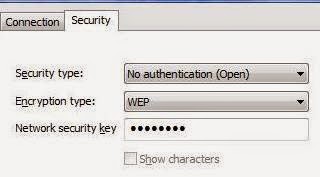
A list of available wireless networks will be shown.  Find the network whose WEP key you want to update, and right click on it.  When the context menu appears, select Properties.  When the network properties window opens, click on the Security tab if it's not already the active tab.  Next to "Encryption type" it should say WEP if this connection already uses a WEP key.  If it says None, click on the down arrow and select WEP.

In the box next to "Network security key," type in the new WEP key.  For each number or letter you type, a black dot will appear.  If you want to see what you are typing, click the box next to "Show characters."  Once you've entered the new WEP key, press OK to apply the change and close the window.

(Originally published on Helium.com, Sept 2011)

How to update a WEP key for a Windows XP computer

Wireless networks use many different protocols for security and encryption.  One of these protocols is WEP encryption, which requires that any device connecting to a wireless network provides the correct WEP key.  If a device does not have the correct key, it won't be able to connect.

If you've changed your wireless network's WEP key and you need to update that information on a Windows XP computer, follow the steps below.  Your computer won't be able to connect to the network until you input the new WEP key.

If you see the icon for wireless networking in the lower right corner of your taskbar (it looks like a computer with radio waves or sound waves coming out of it) you can right click on that icon and then select Open Network Connections.  If you don't see that icon, you can get to the same place by clicking on the Start button and then right clicking on My Network Places and choosing Properties.

In the Network Connections window, right click on Wireless Network Connection and choose Properties.  The Wireless Network Connection Properties window will open.  In this window, click on the Wireless Networks tab across the top.  In the box in the middle of the window, a list of all your saved networks will be displayed.  Click on the network whose WEP key you need to update and then click the Properties button.

In the connection's properties window, there will be a text field labeled "Network key."  This field is where the current WEP key is stored.  To replace it with the new WEP key, simply click on the text field to erase the characters there and then type in the new WEP key.  Once you've typed the WEP key in, you'll have to type it in again next to "Confirm network key."

After you've entered the WEP key and confirmed it, click OK to close the properties window, and then click OK again to close the wireless properties window.  Once these windows are closed, the new WEP key will be saved on your computer for the next time you connect to that network.

These instructions are written for Windows' Wireless Zero connection utility, which is built into Windows XP.  If you are using a different wireless connection client (such as Dell's Wireless Configuration Utility) the steps for updating the WEP key will vary.  See your software's documentation or user manual.

(Originally published on Helium.com, Oct 2011)

Thursday, August 7, 2014

How to change the IP address on a Ricoh Aficio MP 301 copier

By default, Ricoh printers are set up to use DHCP to request an IP address.  If you have a specific IP address you want your Ricoh MP 301 to use, you can assign that IP address to the printer by following the steps below.

- Press the User Tools/Counter button
- On the touch screen, select System Settings
- Select Interface Settings
- Select Network
- Select Machine IPv4 Address
- Select Specify (if it's not already selected)
- Select Machine IPv4 Address
- Using the number pad and arrow keys, enter the IP address you want to use
- Once you have entered the IP address, select the # icon on the screen
- Select OK
- Select Subnet
- Using the number pad and arrow keys, enter the subnet mask
- Once you have entered the subnet mask, select the # icon on the screen
- Select OK
- Select OK again
- Select IPv4 Gateway Address
- Using the number pad and arrow keys, enter the gateway IP address
- Once you have entered the gateway IP address, select the # icon on the screen
- Select OK
- Press the User Tools/Counter button to exit the menu and apply the changes

Monday, July 14, 2014

How to Set up a Wireless Router

Wireless routers are an integral part of many home and office networks. Many routers come with an installation CD that walks you through the setup process, but even without this CD, setting up a wireless router for the first time can be accomplished easily. Follow the steps below to install your wireless router.

• Find a good location

Picking the right location for your router isn't just a matter of clearing a space on your desk for it. Take into consideration where in your home or office the other wireless devices that will be connecting to this router are going to be used, and try to find a central location so that the router's broadcast signal can reach all of the devices.

Also take into account electronic devices that can cause interference with your wireless signal.  Avoid placing the router near microwaves, cordless phones, and other devices that use radio waves to communicate.

• Turn on your computer and modem

If your router is going to be connected to a PC by a cable, turn that computer on first and wait for it to boot up. Also turn on your digital modem, analog modem, or other device that you use to get Internet access.

• Connect any necessary cables

Now connect your wireless router's power cable, as well as any other cables that will be hooked up, such as an Ethernet cable connecting the router to one of your PCs.

• Turn on the router

Once everything is hooked up, turn the router on and give it a minute or so to fully boot up. Depending on the individual router, you should see its lights start to flash or remain on for the various connections.

• Set up an encryption key

Your router is now broadcasting its signal and is ready to be found by your wireless computers. If you have a computer connected to the router by a cable, open up the web browser on that computer and type in your router's default IP address (often, this will be 192.168.1.1 or 192.168.0.1). If you're asked to log in, enter the default username and password, which can be found in the router's documentation.

Once you've logged in to the router's software, find the section for security or encryption and set up WEP, WPA, or WPA2, depending on which protocols your wireless devices are compatible with. You can enter your own encryption key or use the default one provided, but be sure to write this key down. Also write down the default SSID (network name) that can be found on the router's status page.  If you want to change the network name, now is a good time to do so, before you've connected all of your wireless devices.

• Enter the encryption key on your wireless devices

On any devices that will be connecting to your router, find your wireless network from the list of available networks and open up that connection's properties. In the box for security or encryption keys, enter the passcode that you chose and save the settings. If there is an option to automatically connect to this network, check it. Now connect to the network to verify that you can establish the connection. Repeat this procedure on each of your laptops and other wireless devices.

• Set up security features

Once your devices are connected to your network, set up any additional security features you might want to use, such as MAC address filtering, Internet access restriction, or parental controls. It's a good idea to also change the router's default username and password so that anyone outside your network can't access your router's settings. (Write the new username and password down as well.)

Your router should now be fully set up and ready for use. Routers typically don't require a lot of maintenance once they are up and running; the only thing you might have to do is occasionally reset the router (by turning it off, waiting a minute or so, and turning it back on) if you lose your Internet connection or the router starts to act erratically.

Keep all of the information you've written down -- encryption key, router password, etc. -- in a safe place that is easily accessible. If you get a new computer or wireless device, you'll have to enter the encryption key on that device so that it can connect to your network. On a PC, this process can be automated by using the Windows Network Setup Wizard and saving the settings to a flash drive.

(Originally published on Helium.com, January 2011 -- updated from its original form)

Wednesday, July 2, 2014

How to enable or disable DHCP on a Linksys WRT54G Wireless Router

Like many wireless routers, the Linksys WRT54G serves double-duty as a DHCP (Dynamic Host Configuration Protocol) server.  The router controls which IP addresses are available for use on your local network, and it sets up and manages leases for those addresses.

To turn DHCP on or off for your WRT54G, log in to your router's web interface by typing the router's IP address (typically 192.168.1.1) into your web browser and then entering your username and password.  Once you've logged in, you should be looking at the Basic Setup page, under the Setup tab.

Most of your DHCP options are located on the bottom of that page.  By choosing Enable or Disable next to DHCP Server, you can turn the DHCP functions on or off.  (If you disable DHCP, you'll need to set up IP addresses for the each of the devices on your network manually.)  Below that, you can select the range of IP addresses to make available by designating a starting IP address and then choosing the maximum number of users you want to allow.

Whenever a computer requests an IP address from a DHCP server, the address is "leased" for a specific period of time.  Next to Client Lease Time, you can decide how long to make your leases, in minutes.  Leases are automatically extended as necessary, so the only thing this will really affect is network traffic if you have a lot of devices and short lease times.  By setting the lease time for zero, leases will be granted for 24 hours.

Any device that currently holds a DHCP lease is kept track of in the DHCP Clients Table.  To view this table and see what devices are on your network, go to the Status tab (last one on the right) and select the Local Network sub-heading.  Then click the gray button labeled DHCP Clients Table.  (This table can be a good network security tool, to make sure no unauthorized computers or other devices are accessing your network.)

When you click the button, a new window will open up with a list of devices that currently have active IP addresses through your DHCP server.  (Your router won't be on this list because it keeps a static IP address for itself.)  Any connected device with an IP address will be displayed, including smart phones, switches, and other network devices.  You may even find your video game system or television set-top box here.

You can view each device's name, IP address, MAC address, and lease expiration time.  The entries are listed in order of IP address, and by checking the lease times, you can see how long each device has been connected.  (Though if the lease has been renewed, you won't be able to see that information.)  Click the Refresh button at the top right to refresh the list if you've had it open for a while.

If you do find a device on this list that shouldn't be accessing your network, you can take away its IP address by putting a check in the box next to its lease expiration time and clicking Delete.  While monitoring this list is a good security policy, you should also be taking other measures to secure your network, such as disabling SSID broadcasting, enabling MAC address filtering, and using WEP, WPA, or WPA2.

(Originally published on Helium.com, October 2010)

Thursday, June 26, 2014

How to enable remote access for a NetGear WGR614 wireless router

Remote access provides you with the ability to monitor and configure your router's settings from any computer with Internet access.  Enabling remote access opens your network up to possible security threats, but for users who require access to their router's settings when they are away from the network (such as network technicians) it allows a greater degree of control.

To enable remote access on a NetGear WGR614 wireless router, open up a web browser and type the router's IP address into the address bar.  (By default, the IP address is 192.168.1.1.  If you don't know the IP address, this article will help you find it.)  If asked to log in, enter the user name and password set up for the router.  If these have never been changed, the default values are "admin" for the user name and "password" for the password.  If you are going to enable remote access, it's a good idea to change the user name and password from the defaults, if you haven't done so already.

When the NetGear Smart Wizard loads, scroll down on the sidebar until you see the Advanced section, and beneath that heading, click on Remote Management.  The Remote Management screen will appear.

Check the box next to Turn Remote Management On to enable remote access.  The IP address that appears below this box is the address and port number you'll use to access the router remotely -- write this address down somewhere safe.  You can change the port number if you want to, but unless you have a good reason to, you should leave it set to 8080.

Now you have to choose who will have remote access to the router.  The three options (under Allow Remote Access By) are:

• Only the computer that you are currently using
• A specific range of IP addresses
• Anyone with Internet access

The first option is the most secure, but it's also the least flexible.  If you don't know what IP address or computer you'll be logging in to the router from, the third option is probably the best one.

Once you've set everything up the way you want it, click the Apply button below the settings.  It may take a minute for the router to reconfigure itself, during which time any computers connected to the router will be temporarily disconnected.  As soon as the new settings take effect, all connections will be restored.

(Originally published on Helium.com, February 2011)

Tuesday, June 24, 2014

How to manually set the IP address for an HP LaserJet 600 M601 / M602 / M603

To set up a static IP address for a LaserJet Enterprise 600 M601, M602, or M603 printer, or to change the current static IP address, follow these steps:

- With the printer on and ready, press the OK button to bring up the menu
- Scroll down to Administration
- Press OK
- Scroll down to Network Settings
- Press OK
- Scroll down to JETDIRECT MENU
- Press OK
- Scroll down to TCP/IP
- Pres OK
- Scroll down to IPV4 SETTINGS
- Press OK
-  CONFIG METHOD will be displayed; press OK to select it
- Scroll down to MANUAL
- Press OK
- Scroll down to MANUAL SETTINGS
- Press OK
- IP ADDRESS will be displayed; press OK to select it
- Using the number keys, input each portion (octet) of the IP address, then press OK to go to the next octet
- Scroll down to SUBNET MASK
- Using the number keys, input each portion (octet) of the subnet mask, then press OK to go to the next octet
- Scroll down to DEFAULT GATEWAY
- Using the number keys, input each portion (octet) of the gateway IP address, then press OK to go to the next octet
- Press the Home button to exit out of the menu

You can also set a static IP address from the printer's embedded web server, using your computer and a web browser.  In order to change the IP address that way, the printer must already have an IP address assigned (either manually or through DHCP).

How to find the MAC address of a device

A MAC address is a permanent identifier that is burned into network interface cards (NICs) used in computers as well as other network-connectable devices such as printers, routers, television set-top boxes, and video game systems. Unlike an IP address, a MAC address does not change, and it's a way for devices to identify each other on a network.

MAC address filtering is a relatively strong security measure you can take for your home or office network. By enabling MAC address filtering, any device whose MAC address does not match a MAC address on the list that you specify won't be able to access your network. MAC address filtering is especially useful for wireless networks.

In order to use MAC address filtering, you'll need to know the MAC addresses of all the devices that you want to be able to connect to your network. A MAC address consists of six groups of two characters, and each group is separated by either a colon (:) or a hyphen (-).  The characters can be numerals (from 0 to 9) or letters (from A to F).

For a networked printer or copier, you can typically find the MAC address by printing out a configuration page. On some printers it may be called something different, like an information page or a network settings page.  This page should list all of the device's network configuration settings, including the MAC address. The MAC address may be called physical address, Ethernet address, hardware address, or something else, but you can recognize it by looking for the six two-character sets separated by a colon or hyphen.  (If you're not sure how to print a configuration page from your copier or printer, you can find instructions for many different brands and models here:  http://configpages.blogspot.com/)

Smart phones have MAC addresses as well, but they can be trickier to find.  On an iPhone, the MAC address is labeled as the WiFi Address, and on other smart phones it may be called something similar. Just like with printers, you can recognize the MAC address by its unique format. Some BlackBerries will display the MAC address on the phone's Status screen (under Options); on others it can be found under Manage Connections.

If a device is already connected to your local network, you may be able to find its MAC address by using your router's web interface. Most routers allow you to access their settings by typing the router's IP address (often 192.168.1.1 for a home network) into your web browser and logging in with your username and password. Depending on your router's software, you might be able to view a list of all devices connected to your network, along with each device's MAC address.

If you're running Windows Vista or Windows 7, you can find the MAC address of any device on your network by using the Network Map. In the Network and Sharing Center, click Network Map or View Full Map in the upper right corner, and a visual representation of your network will be shown.  Just hover over any device listed, and you should see it's MAC address.

(Originally published on Helium.com, August 2010)