Showing posts with label wireless network. Show all posts

Friday, June 19, 2015

Free Android apps for network technicians

For network technicians, whether you are working on a small home network or a large business network, it can be handy to have access to certain information right from your smart phone, as well as the ability to perform tasks from your phone.  The free Android apps below can all be worthwhile for a network technician to have.

- Wifi Analyzer

This little app can be helpful for improving network performance due to wireless interference issues.  The app will analyze the Wi-Fi channels around you and display graphically the amount of traffic and noise on each channel.  You can then determine the best channel to use to get the least amount of interference.  Wifi Analyzer works with Android version 2.3 or higher, and it has a user rating of 4.4 out of 5.

- Router Passwords

When working with many different customers (especially residential customers) you'll probably see all different brands and models of routers.  With this app, you can have a good database of default usernames and passwords for just about any router.  If the customer forgot their password or can't find their documentation, just look up the router model and find its default credentials.  This app takes up 4.5 MB of space on your phone, and it is compatible with devices running Android version 2.1 or newer.

- Linksys Connect

With Linksys Connect, you can easily manage a customer's Linksys E-Series, X-Series, or Valet router right from your smart phone.  You can access and change router configuration, as well as add new devices and even reboot the router remotely.  Linksys Connect will work with Android version 2.2 or higher, and it requires 2.4 MB of free space on your phone.  (There is also an Apple version of this app for the iPad, iPhone, or iPod Touch.)

- Network Discovery

For a quick overview of the network you're working with, try Network Discovery.  You can see computers and other connected devices, as well as scan ports and view IP addresses.  This app has a user rating of 4.2 out of 5 and it only takes up 256 KB.  It works with Android version 1.5 or higher, and now includes support for Android 3.0.

- Ping & DNS

With this network app, you'll have the ability to run ping and traceroute from your phone.  You can also do DNS lookups and reverse lookups.  The app can combine ping with GPS tracking for troubleshooting spread-out networks such as college campuses.  The app requires minimal space and it has a user rating of 4.3 out of 5.

(Originally published on Helium.com, November 2011; updated June 2015)

Friday, June 5, 2015

How to enable or disable the wireless feature on a Dell Latitude E6420 laptop


On a Dell Latitude E6420, like on many laptops, you can turn the wireless function on or off with the flick of a switch.  If you don't know this switch is there, it can cause headaches as you try to troubleshoot why your wireless connection isn't working.

The switch is located on the right side of the laptop, and it is pictured here.  Pushing the switch toward the rear of the laptop (away from the user) turns the wireless function off, and pushing the switch toward the front of the laptop (toward the user) turns the wireless function on.  You can tell by looking at the switch whether the wireless connection is enabled or disabled by the color; if you see red (or orange) then the wireless has been switched off.


Turning the wireless on or off with this switch is almost instantaneous; there is virtually no lag time when you enable the wireless with the switch, other than the time it takes to connect to whatever wireless network you are set up to connect to.  Turning the switch off immediately disconnects the laptop from any wireless network that it was in communication with.

Saturday, November 8, 2014

How to enable MAC address filtering on a Westell VersaLink 7500 DSL Gateway

Wireless networks are by definition less secure than their wired counterparts.  However, there are certain steps you can take to make a wireless network more secure, including enabling MAC address filtering through your router.  If you're using a Westell VersaLink 7500 gateway to connect to Verizon DSL service, the steps below will guide you through enabling MAC address filtering.

A.  Before you can set up MAC address filtering, you'll need a list of the MAC addresses of all the devices that you want to allow to connect to your network.  In the router's web interface, you can view the MAC address of any device currently on your network by selecting that device under My Network.  This article can also you help you find MAC addresses:  How to find the MAC address of a device.

B.  Open a web browser and type in the IP address of your Westell router.  (This is typically 192.168.1.1 by default.)  If necessary, enter your username and password.

C.  From the Main screen, click the Wireless Settings link along the top of the page.  (If you didn't have to log in before, you'll have to do it now.)

D.  Click on Advanced Security Settings on the left hand side.

E.  Under "Level 3," click on Wireless MAC Authentication.

F.  The Wireless MAC Authentication screen will appear, with instructions.  There is a box about halfway down the screen labeled "Enable Access List" - put a check in the box and then click Apply.

G.  A box will appear to let you know that your wireless access will be temporarily interrupted; click OK.

H.  Click the Add button toward the bottom of the page.  On the next screen, enter the MAC address of the first device you want to allow.  (You can use MAC address filtering to block specific devices as well; if you're entering an address to block, make sure the drop down box next to Traffic is set for Blocked.)  You can enter a descriptive name if you want to, then click Apply.

I.  The address you entered will appear in the box above "Add."  To enter more addresses, click Add again and follow the same procedure for each MAC address.

Once you've added all of the devices that you want to, make sure you can get online from each of them.  A single typo when inputting the MAC address will prevent that device from accessing the Internet.

If you get a new computer down the road, or if someone else wants to get on your network, you'll need to add that MAC address to your list.  You can edit or delete an entry by clicking on the address in the box and selecting the appropriate button, Edit or Delete.  To disable MAC address filtering, go back to the Wireless MAC Authentication page, remove the check mark next to Enable Access List and click Apply.

(Originally published on Helium.com, Sept 2010)

Monday, August 25, 2014

How to change the WEP key on a Verizon DSL router

By default, Verizon DSL wireless routers use WEP encryption to help secure the wireless networks that they manage.  When you set up a Verizon router, it will come with a pre-configured WEP key that will be either 10 or 26 characters long.  You can change this WEP key, both for increased security and also to make it easier to remember, by following the steps below.

Verizon routers, like many other routers, use a browser-based management program that you can log into to make changes to the router's setup.  To access this utility, open a web browser and navigate to the IP address of the router.  By default, the IP address will probably be 192.168.1.1, but if that's not the correct address for your router, then this article will help you find the correct IP address.

Once you type in the router's IP address and press Enter, the Verizon setup page will appear.  On the tab bar across the top of the page, click on Wireless Setup.  A box may pop up asking you for a username and password.  (If you've never changed either of these, the username will probably be "admin" and the password should be "password.")  Type in the username and password and click OK.

After you've successfully logged in, the Wireless Basic Settings page will appear.  Scroll down the page until you see the heading "Select a WEP Key."  Depending on how old your router is, you'll probably be able to choose between a 64-bit WEP key and a 128-bit WEP key.  (Older routers may only support 64-bit WEP keys.)  To toggle between the two choices, use the drop down box under the WEP key heading.  Note that the only difference between a 64-bit key and a 128-bit key is that a 64-bit key is 10 characters long, whereas a 128-bit key is 26 characters long.  The 128-bit key offers greater protection, but it is also harder to remember.

A WEP key can use any digit from 0 to 9, as well as letters from A to F.  It can be all numbers or all letters or a combination of both.  Once you've chosen which type key to use and you have your new key, type it in the box under "Key Code," and write it down somewhere safe.  Then scroll down to the bottom of the page and click on the Apply button.  In order for the change to take effect, any devices that are wirelessly connected to the router will be disconnected.

For any computers that have this wireless connection configured on them, the WEP key will have to be updated in the connection's properties in order to reconnect.  The steps for doing so will vary by operating system, but they will generally be similar.

For instructions for updating the WEP key on a Windows Vista PC, read this article:


For instructions for updating the WEP key on a Windows XP PC, see this article:


(Originally published on Helium.com, Sept 2011)

How to update a WEP key for a Windows Vista PC


Many wireless networks, especially older ones, use WEP encryption to protect the network from intruders and strangers.  Once you've set up a wireless connection in Windows Vista with a WEP key, you can automatically connect to that network without having to re-enter the key every time.  But if the WEP key is ever changed (either by you or someone else) you'll need to update the WEP key on your computer so that you can reconnect to that network.

In the system tray in the lower right corner of the screen there should be an icon for your wireless network that looks like two computers, one in front of the other.  Right click on this icon and select "Connect to a network."  If you don't see that icon, you can get to the same place by clicking on the Vista orb and then in the Run bar typing "network."  When the results appear, click on Network and Sharing Center, and then click "Connect to a network" in the upper left corner.

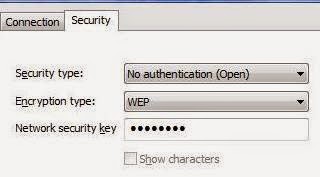
A list of available wireless networks will be shown.  Find the network whose WEP key you want to update, and right click on it.  When the context menu appears, select Properties.  When the network properties window opens, click on the Security tab if it's not already the active tab.  Next to "Encryption type" it should say WEP if this connection already uses a WEP key.  If it says None, click on the down arrow and select WEP.

In the box next to "Network security key," type in the new WEP key.  For each number or letter you type, a black dot will appear.  If you want to see what you are typing, click the box next to "Show characters."  Once you've entered the new WEP key, press OK to apply the change and close the window.

(Originally published on Helium.com, Sept 2011)

How to update a WEP key for a Windows XP computer

Wireless networks use many different protocols for security and encryption.  One of these protocols is WEP encryption, which requires that any device connecting to a wireless network provides the correct WEP key.  If a device does not have the correct key, it won't be able to connect.

If you've changed your wireless network's WEP key and you need to update that information on a Windows XP computer, follow the steps below.  Your computer won't be able to connect to the network until you input the new WEP key.

If you see the icon for wireless networking in the lower right corner of your taskbar (it looks like a computer with radio waves or sound waves coming out of it) you can right click on that icon and then select Open Network Connections.  If you don't see that icon, you can get to the same place by clicking on the Start button and then right clicking on My Network Places and choosing Properties.

In the Network Connections window, right click on Wireless Network Connection and choose Properties.  The Wireless Network Connection Properties window will open.  In this window, click on the Wireless Networks tab across the top.  In the box in the middle of the window, a list of all your saved networks will be displayed.  Click on the network whose WEP key you need to update and then click the Properties button.

In the connection's properties window, there will be a text field labeled "Network key."  This field is where the current WEP key is stored.  To replace it with the new WEP key, simply click on the text field to erase the characters there and then type in the new WEP key.  Once you've typed the WEP key in, you'll have to type it in again next to "Confirm network key."

After you've entered the WEP key and confirmed it, click OK to close the properties window, and then click OK again to close the wireless properties window.  Once these windows are closed, the new WEP key will be saved on your computer for the next time you connect to that network.

These instructions are written for Windows' Wireless Zero connection utility, which is built into Windows XP.  If you are using a different wireless connection client (such as Dell's Wireless Configuration Utility) the steps for updating the WEP key will vary.  See your software's documentation or user manual.

(Originally published on Helium.com, Oct 2011)

Monday, July 14, 2014

How to Set up a Wireless Router

Wireless routers are an integral part of many home and office networks. Many routers come with an installation CD that walks you through the setup process, but even without this CD, setting up a wireless router for the first time can be accomplished easily. Follow the steps below to install your wireless router.

• Find a good location

Picking the right location for your router isn't just a matter of clearing a space on your desk for it. Take into consideration where in your home or office the other wireless devices that will be connecting to this router are going to be used, and try to find a central location so that the router's broadcast signal can reach all of the devices.

Also take into account electronic devices that can cause interference with your wireless signal.  Avoid placing the router near microwaves, cordless phones, and other devices that use radio waves to communicate.

• Turn on your computer and modem

If your router is going to be connected to a PC by a cable, turn that computer on first and wait for it to boot up. Also turn on your digital modem, analog modem, or other device that you use to get Internet access.

• Connect any necessary cables

Now connect your wireless router's power cable, as well as any other cables that will be hooked up, such as an Ethernet cable connecting the router to one of your PCs.

• Turn on the router

Once everything is hooked up, turn the router on and give it a minute or so to fully boot up. Depending on the individual router, you should see its lights start to flash or remain on for the various connections.

• Set up an encryption key

Your router is now broadcasting its signal and is ready to be found by your wireless computers. If you have a computer connected to the router by a cable, open up the web browser on that computer and type in your router's default IP address (often, this will be 192.168.1.1 or 192.168.0.1). If you're asked to log in, enter the default username and password, which can be found in the router's documentation.

Once you've logged in to the router's software, find the section for security or encryption and set up WEP, WPA, or WPA2, depending on which protocols your wireless devices are compatible with. You can enter your own encryption key or use the default one provided, but be sure to write this key down. Also write down the default SSID (network name) that can be found on the router's status page.  If you want to change the network name, now is a good time to do so, before you've connected all of your wireless devices.

• Enter the encryption key on your wireless devices

On any devices that will be connecting to your router, find your wireless network from the list of available networks and open up that connection's properties. In the box for security or encryption keys, enter the passcode that you chose and save the settings. If there is an option to automatically connect to this network, check it. Now connect to the network to verify that you can establish the connection. Repeat this procedure on each of your laptops and other wireless devices.

• Set up security features

Once your devices are connected to your network, set up any additional security features you might want to use, such as MAC address filtering, Internet access restriction, or parental controls. It's a good idea to also change the router's default username and password so that anyone outside your network can't access your router's settings. (Write the new username and password down as well.)

Your router should now be fully set up and ready for use. Routers typically don't require a lot of maintenance once they are up and running; the only thing you might have to do is occasionally reset the router (by turning it off, waiting a minute or so, and turning it back on) if you lose your Internet connection or the router starts to act erratically.

Keep all of the information you've written down -- encryption key, router password, etc. -- in a safe place that is easily accessible. If you get a new computer or wireless device, you'll have to enter the encryption key on that device so that it can connect to your network. On a PC, this process can be automated by using the Windows Network Setup Wizard and saving the settings to a flash drive.

(Originally published on Helium.com, January 2011 -- updated from its original form)