Sunday, October 26, 2025
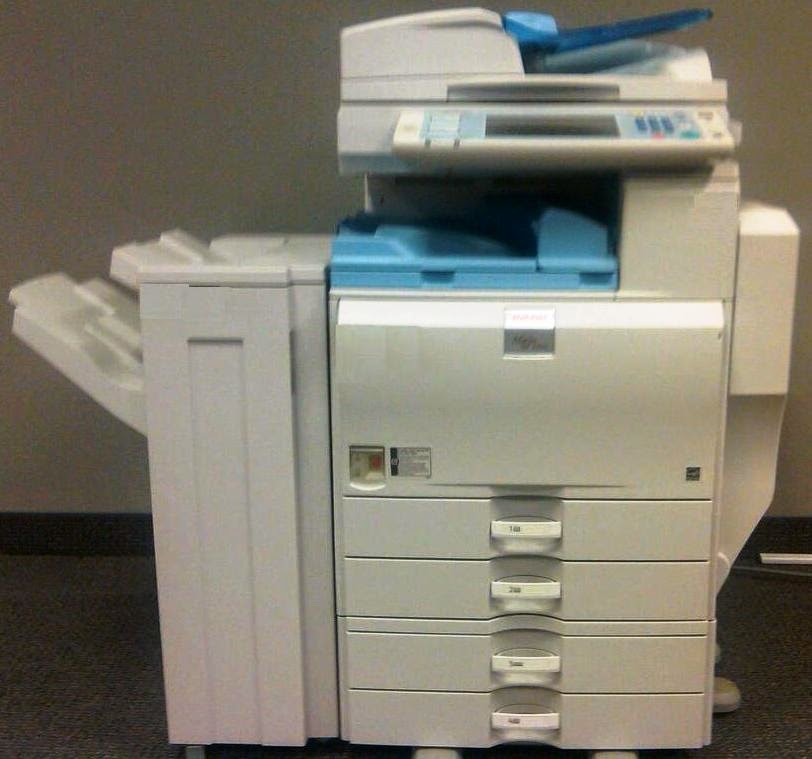
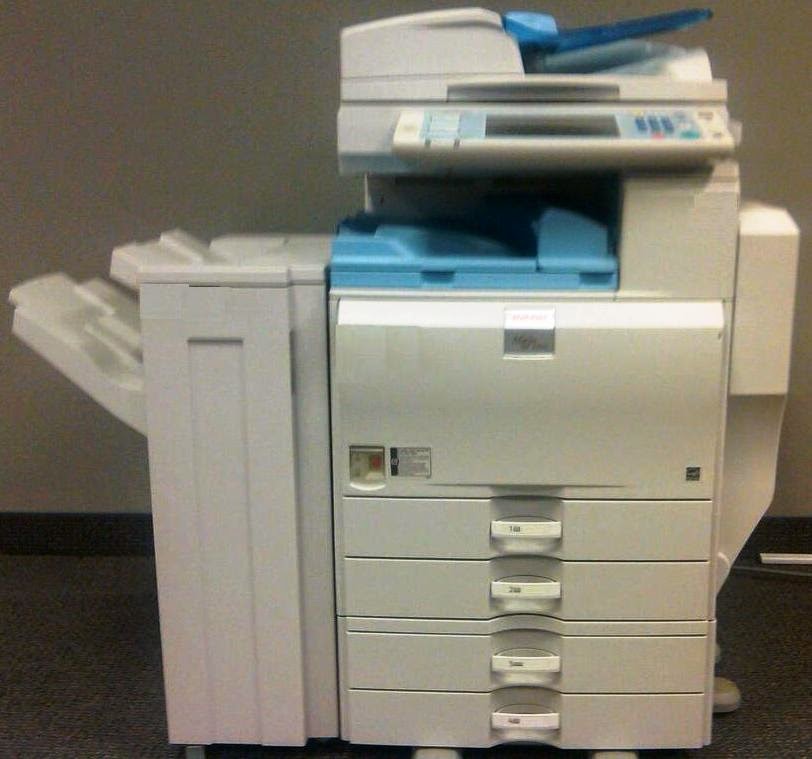
How to set the IP address for a Ricoh Aficio MP 4001/5001 copier
Monday, June 17, 2024
How to change the paper size on a Ricoh Aficio 3035 / 3045
Monday, June 3, 2024
Tips for loading toner in a Ricoh MP 2550 or MP 3350 copier
Thursday, May 30, 2024
How to change the output trays for a Ricoh Aficio MP 5500 copier
Tuesday, May 21, 2024
How to change the hole punch mode on a Ricoh Aficio 2075 copier
Saturday, May 18, 2024
How to change the paper type on a Ricoh Aficio MP 3500
Tuesday, January 2, 2024
How to find the MAC address of a Ricoh Image Scanner IS200e
- Press the User Tools button on the operation panel.
- Press 1 to select "System Settings."
- Scroll down through the menu using the button below the on-screen down arrow until you get to "9. MAC Address."
- Press the button below the "Settings" option.
- The MAC address will be displayed.
- Press the User Tools button again to exit out of the menu.
Saturday, December 9, 2023
How to enable DHCP on a Ricoh CL4000DN printer
- On the printer's operation panel, press the Menu button (directly beneath the display screen).
- Using the down arrow button, scroll down to Host Interface, then press the #Enter button to select it.
- Scroll down to Network Setup (called Network on some models) and press #Enter.
- The first option will be DHCP; press #Enter to select it.
- Scroll down to On and press #Enter.
- DHCP is now enabled. Turn the printer off and back on (the power switch is on the lower left side of the front of the printer, next to the paper tray) to allow the printer to begin using DHCP.
Thursday, December 7, 2023
How to enable energy saver mode on a Ricoh CL4000DN printer
- Press the Menu button on the printer's control panel to bring up the main menu.
- Using the arrow buttons, scroll down to System and press the #Enter button to select it.
- Scroll down to Energy Saver, then press #Enter.
- The first option will be E. Saver On/Off; press #Enter to select it.
- "*Off" will appear; scroll down to On and press #Enter.
- After a second or two, the screen will return to the Energy Saver menu. Scroll down to E. Saver Timer and press #Enter to select it.
- Using the arrow buttons, select the amount of time you want the printer to wait before entering energy saver mode.
- The available options are 5, 15, 30, 45, or 60 minutes.
- When the setting you want is highlighted, press #Enter to select it.
Saturday, November 25, 2023
How to fix the DHCP connection error on a Ricoh copier
Cannot connect with DHCP server. (101)Contact the administrator.
- Press the User Tools button on the copier's operation panel (typically located to the upper left of the display screen).
- On the touch screen, tap System Settings (in the upper left corner of the screen).
- The System Settings section is broken into tabs; tap the Interface Settings tab. (On older copiers, this tab may be called Host Interface.)
- Tap Machine IPv4 Address.
- There are two options here: Auto-Obtain (DHCP) and Specify. (The first option should be the active one.) Tap Specify to turn off DHCP, so the copier won't try to obtain an IP address.
- It doesn't matter what IP address you specify, since the copier isn't connected to a network.
- Tap OK to save the change.
- Press the User Tools button again to exit out of the menu.
Wednesday, November 22, 2023
How to adjust color registration on a Ricoh MP series color copier
The Ricoh MP series color copiers (such as the MP C3300, MP C4500, or MP C2550) all put out good-quality color copies and prints. However, since the copiers use a different drum for each color (cyan, magenta, yellow, and black) the different colors can get out of alignment with each other occasionally. If you notice that some of the colors don't line up correctly when printing a color image, you can usually fix this problem easily by running the color registration adjustment.
1. Go into User Tools
Press the User Tools button on the copier's operation panel (typically located to the upper left of the display screen).
2. Go to Maintenance
From the choices that appear, select Maintenance by pressing it on the touch screen.
3. Choose Color Registration
You'll see two options on the Maintenance menu. Choose the second one, Color Registration.
4. Confirm your choice
A message will appear asking you to confirm that you want to adjust the color registration. Press OK.
5. Wait
The color registration adjustment takes a little while to complete. Once it has finished, you'll be returned to the Maintenance menu.
6. Exit out of the menu
Press the User Tools button to exit out of the menu.
7. Verify that the alignment is fixed
Make a color copy to confirm that the color alignment has been corrected. If the colors still aren't lined up, or if the color registration adjustment fails, contact your service technician.
(Originally published on Helium.com, 2011)
Monday, January 30, 2023
Where to find the product code sticker on a Ricoh copier or printer
Just about every Ricoh copier and printer has a silver or gray sticker somewhere on it that lists the product name, product code, and that machine's serial number (along with other information). The sticker can come in handy, for example if the label with the machine's name has come off the front and you don't know what kind of copier or printer it is, or if you need to get the serial number and the machine won't turn on. It is also an easy way to find out the machine's product code (though you can also usually look that up online if you know the product name).
The product code stickers appear in different places on different copiers, and they can sometimes be difficult to find. Here are the locations of the product stickers for many Ricoh models:
- On many of the high-volume copiers, such as the Aficio MP9000/1100/1350 series or the Pro 906EX/1106EX/1356EX series, the sticker can be found by opening the right front door. It will be on the plastic frame cover facing out.
- On the Ricoh Aficio MP4000 and MP5000 copiers, as well as on the newer MP4001 and MP5001, the product sticker can be found on the rear of the machine, in the bottom left corner of the rear cover (close to the finisher, if there is one installed).
- On the 55 to 80 copy-per-minute machines such as the Aficio MP6000/7000/8000 series or MP6001/7001/8001 series, as well as their color counterparts like the MP C6501 and MP C7501, the product sticker is hidden by the bypass tray on the right side of the copier. You have to pull open the bypass tray to see the sticker, which faces out to the right.
- On low-volume models like the Aficio MP2550 and MP3350 (and on the older machines in the same family) the sticker is on the rear cover, close to the center and toward the lower half of the copier.
- On the Aficio MP C2030, MP C2050, and MP C2550 color series, the product sticker is located on the rear cover of the machine, in the lower left corner. (When looking at it from the back, it's in the lower right corner.)
- On the wide format Ricoh FW780 printer, the product code sticker is on the rear left side of the machine.
If your model isn't listed here, there's a good chance you can find the sticker somewhere on the back of the copier or printer. Ricoh accessories (document feeders, bridge units, duplex units, etc.) also have their own product code stickers. They will vary in location as well, but are typically easier to spot. On many Ricoh finishers, the sticker can be found by opening the finisher's front door and looking either at the very top of the inside of the finisher, or the very bottom. If it's not there, it's probably underneath one of the finisher's exit trays, viewable from the left side of the machine.
(Originally posted on Helium.com, Sept 2010)
Monday, June 15, 2020
How to clear the fax memory on a Ricoh Aficio MP series multifunction printer
If the fax memory on your Ricoh Aficio MP series copier/printer is full or almost full, you can delete some (or all) of the faxes stored in the reception file to can make room for new faxes.
- On the fax screen, press the button toward the top labeled Change TX / Info, TX / RX Status, or something similar. (Wording varies by model.)
- On the menu that appears, select the option for printing or deleting the reception file.
- The list of stored faxes will be displayed. From here, you can either print out or delete (or both) old faxes, and make room for new faxes to come through. If you want to delete old faxes, you can select multiple files at once to delete.
Saturday, February 17, 2018
Ricoh troubleshooting: How to fix a scan folder not found error
- The folder that you are trying to scan to isn't shared. Check the folder's share settings.
- The user account you are using to authenticate does not have rights to access that folder (possibly someone changed their password recently). Update the password in the copier's address book (User Tools/Counter > System Settings > Administrator Tools > Address Book Management).
- There is a network connection problem somewhere between the copier and the computer. Try to ping the copier from the computer and vice versa, then narrow down the problem by checking any intermediate devices (switches, hubs, routers, etc.).
- There is a hardware device or software program preventing the copier from reaching that folder (i.e. a firewall, anti-virus program, security suite, router, etc.). Check any hardware/software security settings that may be preventing the connection. You may have to set up an exception in your firewall.
- The copier and the computer are not in the same workgroup/domain. Change the copier's workgroup or domain to match the computer you're trying to scan to.
- If you are using an IP address for the computer instead of a host name, the computer's IP address has changed. Update the IP address, or change the destination path to use the computer's host name instead of IP address.
- If you are using the computer's host name in the scan folder path, the host name may have been changed, the DNS record might be corrupted, or the DNS server might be down. Confirm that the host name is correct, and if it still won't connect, replace the host name with the computer's IP address in the scan folder path.
- The copier's SMB protocol has been disabled (User Tools/Counter > System Settings > Interface Settings > Effective Protocols).
If scanning to a folder was never fully configured, you can find instructions for doing so here:
Friday, February 2, 2018
How to get into service mode on a Ricoh Aficio copier or printer
For most modern Ricoh copiers (i.e. Aficio MP 6003):
To enter service mode, press the yellow Reset button, then 8-0-6-1-8-2. Then hold down the red Clear/Stop button for about 5 seconds. The screen will shift to a menu. Select the first option in the menu: System/Copy SP Mode.
For most Ricoh copiers older than an "03" model (i.e. Aficio MP 4002):
To enter service mode, press the yellow Clear button, then 1-0-7. Then hold down the red Stop button for about 5 seconds. The screen will shift to a menu. Select the first option in the menu: System/Copy SP Mode.
For most Ricoh printers without a number pad (i.e. SP 4310):
To enter service mode, hold down the up and down arrow buttons at the same time, for about 5 or 6 seconds, then release them and press the Enter button.
Sunday, August 20, 2017
How to save a file to the Document Server on a Ricoh copier
To save a document to the Document Server on a Ricoh copier or multifunction printer:
- Select Go to Scanning Screen
- Place your document on the glass or in the document feeder
- Choose any settings that you want to change (color, two-sided, etc.)
- Press the Start button
Before storing a document, make sure that the Auto Delete function has been disabled; otherwise, your document will be deleted after a certain number of days. This easy guide will show you how to check the Auto Delete function and turn it off if it's not off already:
- How to disable the Auto Delete function on a Ricoh copier’s Document Server
Saturday, July 8, 2017
How to fix an SC400 error on a Ricoh Aficio SP C430DN printer
The ID sensor on this printer is actually a set of five sensors, located on the ID sensor board. The ID sensor board is located inside the front door of the C430DN. You can see a picture of it in the service manual, on pages 4-48 and 4-49. (If you don't have the service manual, you can probably find it online -- such as on lfncopiadoras.com -- but always be careful when viewing or downloading documents from unfamiliar sites.) The manual shows you the procedure for removing the ID sensor board; you don't need to do all of those steps just to clean it. Follow the steps shown until you are comfortable seeing or reaching the ID sensors so you can clean them.
If you can get to the sensors, you can wipe them down with a dry, lint-free cloth. You can use a tiny bit of alcohol to clean them, but make sure you wipe off every last drop. If you can't physically reach the sensors, use canned air to clean them. Be sure to clean all five sensors. Don't use an oil rag or a cleaning wipe to clean the sensors, as these can leave a residue.
Often, cleaning the ID sensors and rebooting the printer will resolve an SC400 error. If the problem persists, however, it may be time to call a technician to diagnose it. You may need to replace the ID sensor board, or you could have a problem with the transfer belt unit or another internal component.
Saturday, August 29, 2015
How to cancel a print job on a Ricoh printer
On most Ricoh printers, if you need to cancel a print job you can do it directly from the device. On Ricoh multifunction printers with a touch screen, press the Printer button and then either select Job Reset on the screen or press the red Stop button. You'll be asked to confirm your choice, and decide whether you want to cancel the current job or all pending jobs.On Ricoh printers without a touch screen, you can probably cancel a print job by pressing the Job Reset or Cancel button. If the printer has a display screen, you may be asked to confirm your choice.
For printers that are connected to a network, you can also cancel print jobs from your computer. Open a web browser and navigate to the printer's IP address. (If you don't know the printer's IP address, you can find it by printing out a configuration page.) When the Ricoh web server page loads, click on the Login button in the upper right corner. Enter the copier's user name and password, then click Login or press <ENTER>.
Hover over Device Management on the left side of the screen, then select Reset Printer Job. Select either Reset Current Job or Reset All Jobs, then confirm your choice.
Wednesday, July 29, 2015
How to find the IP address of a Ricoh copier or printer
Almost every connected device on a TCP/IP network has its own IP address, which other devices and computers use to locate that device and communicate with it. If you have a Ricoh multifunctional copier or printer set up on your network and you need to find its IP address, this article will show you how to do that.There are many different models of copiers and printers in the Ricoh product family. Generally, the easiest way to find a Ricoh machine's IP address is to print out a configuration page, which lists relevant network settings, including the IP address. On most Ricoh copiers, you can print a configuration page by pressing the User Tools button on the operation panel, selecting Printer Features or Printer Settings, and looking for an option such as "Print Config Page" or "Print Config List."
Copier IP addresses can also be displayed on screen. On many current models, such as the C5000, go into User Tools and navigate to System Settings > Interface Settings > Machine IPv4 Address. Older copiers will display the address as well, but the path to find it might be slightly different. It will always be located somewhere under System Settings.
Many of the newer copier models also have a tab at the bottom of the main Copy screen labeled "System Status." If you touch this tab, you'll be shown many details about the copier's current status, including the amount of toner remaining, the hard drive space available, and of course, the IP address.
On a Ricoh printer (either black and white or color) you don't have the same size operation panel that you do with a copier, so it can be harder to navigate through the menus. Like with the copiers, however, the IP address will be printed on the config page, so you can just print that out -- press the Menu button, and go to "List/Test Print" and then "Config Page." The IP address can also be displayed on screen by pressing the Menu button and then following the path of Host Interface, Network, Machine IPv4 Address, and finally IP Address. If you view the IP address this way, be sure to exit out of the network settings without making any accidental changes.
If for some reason you can't get the IP address from the machine itself, you might be able to find it from a computer connected to the same network. If you are running Windows Vista, you can use the Network Map to try to look up the copier's IP address. All connected devices should be shown on the Network Map -- if you can locate the copier, hover over it with the mouse and you might be rewarded with its IP address. (For instructions on how to access the network map in Windows Vista, click here. For instructions on how to access the network map in Windows 7, click here.)
On a computer that's set up to print to the Ricoh printer, you can often find the printer's IP address in the print driver properties. Right click on the printer icon under Devices & Printers (or Printers and Faxes, in Windows XP) and select Printer Properties (or in XP, just Properties). Under the Ports tab, if the printer is set up to print using its IP address, you may see the IP address listed as the port name, or part of the port name.
(Originally published on Helium.com, April 2010)
Saturday, July 25, 2015
How to ping an IP address from a Ricoh Aficio MP C4500 multifunction copier
To get to the ping command, press the User Tools/Counter button, to the upper left of the copier's touch screen. On the menu that appears, touch System Settings, then touch the Interface Settings tab. Use the arrow in the lower right corner to scroll down to the next page (2/2), and you'll see the Ping Command button on the left side of the screen. Press it to bring up the Ping utility.
Unlike when you ping from your computer, with the C4500 you can only ping an IP address. You can't ping a host name or domain name, but if you know the target's IP address, you can ping it that way. The IP address is defaulted to 0.0.0.0 -- press Change to be able to input the destination IP address. When you are done typing in the address, press the pound key (#) on the number pad, or the pound symbol on the touch screen to lock in the address. Then touch Ping.
The ping attempt should only take a second or two. When you use the ping command in Windows, it sends four ping requests by default, but the C4500 only pings once. You'll see either "Ping connection was successful" or "Ping connection has failed," depending on the result.
There is also a dedicated ping command you can use to specifically ping your DNS servers. To use this command, scroll up to the first Interface Settings page and touch DNS Configuration. If you've already input IP addresses for at least one of your DNS servers (up to three) you can use the Connection Test button to the right of that entry to ping the DNS server. If the copier can reach that server, you'll see the "Connection to the server was successful" message. It's a good idea to run the connection test any time you switch DNS servers or after you first set up the copier for network printing or scanning.
Other networked Ricoh copiers can also ping, but the command may be located under a different heading in the menu. With a little searching, you should be able to find it grouped somewhere with the network configuration settings.
(Originally published on Helium.com, August 2010)