Showing posts with label Microsoft. Show all posts

Monday, November 10, 2025

How to disable Copilot in Microsoft Excel

Screen snippet of the Copilot chat screen in Microsoft Excel

Copilot, Microsoft's generative AI tool, is enabled by default in modern versions of Excel, Word, and other Microsoft 365 (M365) apps. If you wish to disable Copilot in Excel, it can be done easily by following the steps below:

  • Select the File tab (upper left)
  • Select Options (lower left)
  • Select Copilot (left sidebar)
  • Uncheck the box next to Enable Copilot
  • Select OK
  • Close any open Excel windows
  • Relaunch Excel

Screen snippet of the "Enable Copilot" check box in Microsoft Excel

If you later change your mind, you can turn Copilot back on at any time by checking the Enable Copilot box and restarting Excel.

Wednesday, October 22, 2025

How to disable Copilot in Windows Notepad

Like other Microsoft office apps, Windows Notepad now includes Copilot features built in. Some people may like the Copilot features (create a prompt-based draft document, summarize a document, change a document's tone or format, etc.) but others may rather disable Notepad's new AI-related capabilities.

If you want to disable Copilot in Windows Notepad, simply follow the steps below. You can re-enable Copilot at any time if you change your mind.

  • Click or tap the Settings button (the gear icon) in the upper right corner of the Notepad window.
screen snippet showing where the gear icon is located in Notepad
  • Scroll down to the AI Features section of the Settings menu.
  • The toggle switch next to Copilot will be set to On (if Copilot is enabled). Click or tap it to change it to Off. 

screen snippet showing Notepad's Copilot features toggled On

screen snippet showing Notepad's Copilot features toggled Off


Friday, October 17, 2025

How to disable Copilot in Microsoft Word

Microsoft has integrated Copilot, its generative AI tool, into Word, Excel, and other Microsoft 365 applications. There are many benefits to using Copilot—which Microsoft is quick to point out—but it may not be for everyone. For example, with some layouts in Word, Copilot will superimpose its icon over the text (and possibly cursor) beneath it, as shown below.

dummy text showing the Copilot icon superimposed over the text

Disabling Copilot in Microsoft Word is a simple process. If you ever want to reenable it, that can be done easily as well. To disable Copilot in Word, follow these steps:

  • Select the File tab (upper left)
  • Select Options (lower left)
  • Select Copilot
  • Uncheck the box next to Enable Copilot
  • Select OK

snippet of Microsoft Word's Options screen showing the check box to enable or disable Copilot (currently enabled)

Friday, January 27, 2017

How to quickly insert a screenshot into Word 2013


Microsoft Word 2013 gives you the option to take a screenshot and insert it into a Word document in one easy step (without having to save the screenshot first).  To copy and insert the current view from any open program, file, or folder:

- Open a Word document (either an existing document or a blank new document) in Word 2013
- Select the Insert tab
- Select Screenshot*
- Select the currently-open program or view from which you want to take a
screenshot

Once you have inserted the screenshot, you can resize it or move it around just like any other picture.

* If the "Screenshot" option is grayed out, you will need to convert your document to the current Word version first.  To convert the document:

- Select the File tab
- Click Convert
- Click OK

Saturday, October 10, 2015

How to stop Microsoft Word from printing an extra page with your document

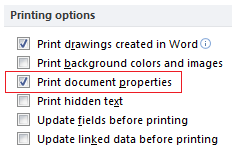
If an extra page prints out with your document when you print from Microsoft Word, the fix is very easy.  This page is called the document properties page, and it includes information such as the file name, any keywords, the total number of words, and much more.  It is a simple process to stop the document properties page from being printed.

To disable the document properties page in Word 2010:

- Open Word 2010
- Click on File in the upper left corner
- Select Options on the file menu
- Select Display in the left pane of the Word Options window
- Under the Printing options heading, click the box next to "Print document properties" to remove the check mark from it
- Click OK at the bottom of the window

These steps will also work for Word 2016.  For older versions of Word, you can see how to disable the document properties page in this Microsoft support article.

Monday, February 2, 2015

Beginner's guide to QBasic

QBasic is Microsoft's version of the BASIC programming language. Developed in 1987, it was shipped out as part of the MS-DOS operating system. Now you can usually find a copy online somewhere to download.

As far as programming languages go, BASIC is very easy to learn. And QBasic is even easier, because it runs in its own editor and formats your code for you. For example, to make the computer print the word "HELLO," the command in BASIC is:

PRINT "HELLO"

In QBasic, you could type it as follows, and the editor would automatically capitalize your command and add a space before the quotation mark:

print"HELLO"

PRINT is one of the most common commands in BASIC. It can be abbreviated with a question mark (ie, ?"HI") in QBasic, to save you time writing code.

QBasic reads code starting from the top and working its way down, unless you tell it to specifically jump to another line. Line numbers were required at the beginning of every line in older BASIC programs, but for QBasic, you only need them if you want to reference that line somehow (for instance, by telling the program later to go back to that line).

This may seem confusing, so let's take a look at a very simple program. If you have QBasic, type the following lines of code in and run them.

CLS: ?"Let's count to 10."
a=0
5 a=a+1:? a
if a<10 then goto 5
end

You'll notice that as you type each line in and hit <ENTER>, the editor will format that line (add spaces between the letters and symbols, change ? to PRINT, and make all of the commands capital letters).

If you run this program, the screen would clear and you would see the following text:

Let's count to 10.
1
2
3
4
5
6
7
8
9
10

Let's break down the commands used in this program, and then we'll take a look at how line numbers are used in QBasic.

The first command is CLS. This stands for "clear screen," and does just what it says. It's a good command to use at the beginning of a program, in case there is already other text on the screen. The colon after the command tells the editor that you are putting another command on the same line.  You can put as many commands on one line as you want, as long as they are separated by colons.

The "?" is just the PRINT command, followed by what you want to print.

On the next line, we start to get into variables. Variables are what you learned about in algebra -- letters (or letters plus numbers, such as a1, a2, etc) that are assigned a numeric value. In this case, "a" is assigned the value 0. (You can also make string variables, which we'll discuss later.)

Now we come to the first line number. We make "a" equal to its value plus 1, then we print it. Notice you don't need to put quotes around the variable when printing it, because it's not a string of text -- you don't want to print the letter "a," you want to print its value.

On the next line we have the IF...THEN command. IF...THEN is a powerful tool you can use to allow your program to make choices. Say you're writing a simple game like "guess what number I picked" -- depending on whether or not the player guesses the right number, the computer can respond with "correct" or "incorrect."

In this program, the first time the IF...THEN statement is reached, the value of "a" is 1. 1 is less than 10, so the program executes the code that follows the THEN command; in this case, the GOTO command tells it to go to line 5. Line numbers can be any number, or even a word or string of words (such as BeginningLine or WrongAnswer). If you use words for line numbers, you have to follow them with a colon.

This program will keep printing the value of "a" and returning to line 5 until "a" is not less than 10. Then the program will end, and you will see "Press any key to continue" at the bottom of the screen. Once you hit a key, you will be returned to the editor.

Variables are very useful in BASIC because you can either assign them values that can be changed, or allow the user to assign them values. Numeric variables are simply letters (or letters and numbers, such as a4) but to assign a variable text (or a string of text) you would have to make it a string variable, which is designated by a dollar sign at the end of the variable name (ie, name$).

A useful command that involves variables is INPUT. INPUT allows you to get information from the user and store that information as a variable. For example, executing this line:

INPUT "What is your favorite number?", num

will print the question in quotation marks and then prompt the user to type something and hit <ENTER>. "Num" is a numeric variable (to make it a text or string variable, you would have to name it num$), so entering text at the prompt will either generate a "Redo from start" error or assign the variable a value of zero.

(The line of code above uses a comma with the INPUT command. You can also substitute a semi-colon, which will tell the program to add a question mark and a space after it prints the text.)

String variables are used the same way as numeric variables. This short program makes use of a string variable:

INPUT "What is your favorite color?", color$
PRINT: PRINT "Your favorite color is " color$ "."

The user would be prompted to enter a color, and then the program would repeat that color back to the user. (The PRINT command with no text or variable following it will simply print a blank line.) The variable "color$" is outside the quotation marks in the PRINT command, because we want to print the variable's value.

The QBasic editor is built on the MS-DOS text editor, and is similar to Windows Notepad. You can use the mouse or keyboard to navigate it, and it comes with many helpful features, including, Find, Change, and Split Screen.

Now you know some useful QBasic commands that will help you get started writing simple code and becoming familiar with the language. QBasic comes with plenty of help if you get stuck -- a list of contents, an index, and even a "Survival Guide."

(Originally published on Helium.com, May 2009)

Friday, November 21, 2014

QBasic tips & tricks

QBasic, Microsoft's version of the BASIC programming language, isn't widely used by any stretch of the imagination.  However, some people still use it, and it can come in handy for designing simple programs (especially if you have a compiler).  Below are some tips and tricks for getting more done with QBasic.

Microsoft's QBasic editor is smarter than a normal text editor, so you can save some time by letting it do a lot of the formatting work for you.  For example, if you type "10 print a$:input c$:goto 20" you'll see the following line when you press <Enter>:

10 PRINT a$ : INPUT c$ : GOTO 20

Another shortcut is to use a question mark instead of typing out PRINT.  QBasic will translate a question mark (?) as PRINT, as long as you don't put it in quotation marks.  So typing "?number" would become "PRINT number".  (In this example, QBasic would assume "number" is a variable.)

When using the INPUT command, QBasic typically inserts an end-of-line character after the user's input, so anything you want the program to print will automatically start on the next line.  But if you use a semi-colon with INPUT, you can bypass the end-of-line insertion and keep the program on the same line.  So if you wrote a program that consisted of these two lines:

INPUT ; a$
PRINT a$

QBasic would print whatever the user typed in right next to where they typed it, rather than skip to the next line.  If you're using a prompt with INPUT, however, this tip won't work; QBasic will still skip to the next line, even with the semi-colon present.

If you don't use subroutines, you are probably writing a lot of redundant code.  QBasic lets you call subroutines and then return to where you were in the program, so that commands that you would run often can just be typed in once and then accessed as many times as necessary.

Subroutines work well for tasks that must be repeated over and over again without any change.  As an example, if you were writing a self-test program to study for an exam, you could write one subroutine that would get the input from the user, and another subroutine that would take the user's answer and compare it to the correct answer to see if the user was right or wrong.  That way, for each unique question you would only have to give the program the question and the correct answer, and the subroutines could do the rest.  To call a subroutine, use the syntax "GOSUB <line number>", and then putting "RETURN" at the end of the subroutine will give control back to the line that called it.

(Originally published on Helium.com, May 2010)

Sunday, September 7, 2014

How to create a signature in Microsoft Outlook Web App

Microsoft's Outlook Web App lets you check your mail in Outlook, from any computer with Internet access and a web browser.  If you want to set up an email signature in Outlook Web App, here's how:

- Open a web browser and log into your Outlook Web App mail account
- Click Options in the upper right corner
- Click See All Options
- Click Settings on the left side
- In the signature box (labeled "E-Mail Signature") type the signature you want to use
- If you want, check the box labeled "Automatically include my signature on messages I send"
- Click Save in the lower right corner

These steps were written specifically for Outlook Web App in Internet Explorer.  The exact steps may vary when you're using other web browsers.  For example, when you use Outlook Web App in Chrome and you click on Options, the signature box comes up right away.