Restarting your computer's print spooler is often a handy way of resolving or troubleshooting printing problems. To restart your print spooler you will need admin rights on the computer; if you don't have admin rights, you can always just reboot the computer instead, which restarts all of the services.
To restart the print spooler service on a Windows 10 computer:
- Click on (or tap) the Windows button (formerly the Start button) on the taskbar
- Type "services" into the Search bar, and click on Services in the results or press the <ENTER> key
- In the Services window, scroll down to Print Spooler
- Click Restart to the left of the services list (or right click on Print Spooler and select Restart)
Showing posts with label print spooler. Show all posts
Showing posts with label print spooler. Show all posts
Saturday, March 12, 2016

Saturday, August 29, 2015
How to cancel a print job on a Ricoh printer
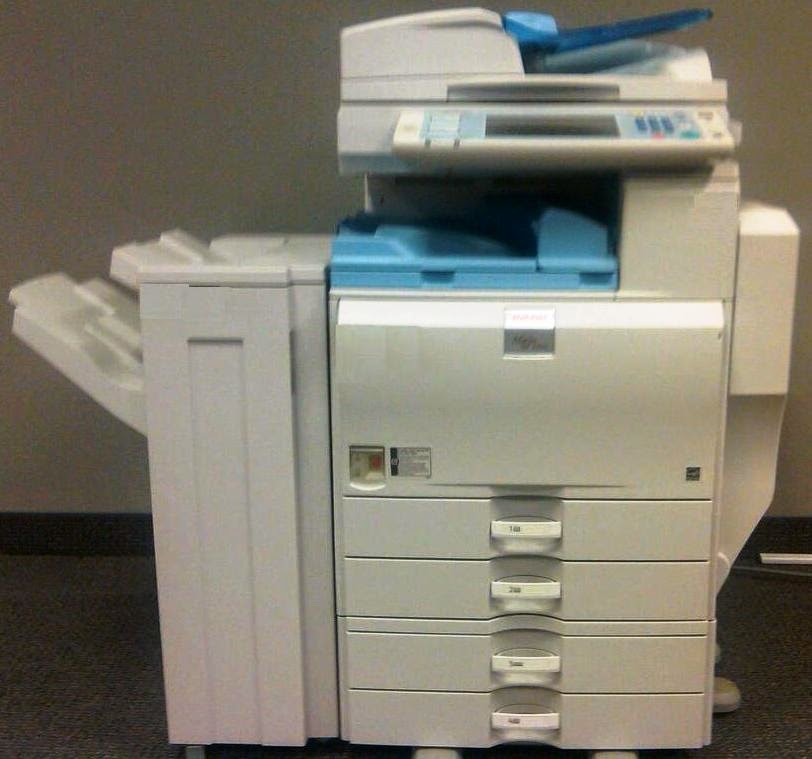 On most Ricoh printers, if you need to cancel a print job you can do it directly from the device. On Ricoh multifunction printers with a touch screen, press the Printer button and then either select Job Reset on the screen or press the red Stop button. You'll be asked to confirm your choice, and decide whether you want to cancel the current job or all pending jobs.
On Ricoh printers without a touch screen, you can probably cancel a print job by pressing the Job Reset or Cancel button. If the printer has a display screen, you may be asked to confirm your choice.
For printers that are connected to a network, you can also cancel print jobs from your computer. Open a web browser and navigate to the printer's IP address. (If you don't know the printer's IP address, you can find it by printing out a configuration page.) When the Ricoh web server page loads, click on the Login button in the upper right corner. Enter the copier's user name and password, then click Login or press <ENTER>.
Hover over Device Management on the left side of the screen, then select Reset Printer Job. Select either Reset Current Job or Reset All Jobs, then confirm your choice.
Friday, August 14, 2015
How to restart the print spooler in Windows 7
In Windows, the print spooler is the service that loads print jobs to be sent to the printer. Sometimes this service can freeze or hang up, causing jobs to not get printed. When this happens, you can often restart the print spooler to correct the issue. This guide will show you how to restart the print spooler on a Windows 7 PC.
 Click on the Windows button on the left side of the task bar (where the Start button used to be in Windows XP). Type "services.msc" into the Search bar on the Start menu, then press <ENTER>. The Services window will open shortly.
Scroll down the list of services until you get to Print Spooler. To the left of the list of services you will see "Restart the service" with "Restart" displayed in blue; click on this text. A status bar will appear showing the progress of the service, and once it completes, the print spooler will have been restarted.
If you don't see "Restart the service" when you click on Print Spooler, then your account does not have administrator rights. You won't be able to restart the print spooler manually, but you can reboot the computer, which will restart the print spooler (and the other services).
Click on the Windows button on the left side of the task bar (where the Start button used to be in Windows XP). Type "services.msc" into the Search bar on the Start menu, then press <ENTER>. The Services window will open shortly.Scroll down the list of services until you get to Print Spooler. To the left of the list of services you will see "Restart the service" with "Restart" displayed in blue; click on this text. A status bar will appear showing the progress of the service, and once it completes, the print spooler will have been restarted.
If you don't see "Restart the service" when you click on Print Spooler, then your account does not have administrator rights. You won't be able to restart the print spooler manually, but you can reboot the computer, which will restart the print spooler (and the other services).
Friday, January 30, 2015
How to restart the print spooler service in Windows XP
There are many different reasons why you may not be able to print from your computer. Sometimes, if everything else is fine and you can't figure out why you can't print, you may just need to restart your print spooler.
The print spooler is the program that takes your print job and sends it to the printer. If this program freezes or gets stuck on a certain job, you can restart it to get your computer printing again. Here are instructions for how to restart the print spooler in Windows XP.
Press the Start button, and when the Start menu appears, click on Run. (If you don't see the Run option, skip to the next paragraph). In the Run box, type "services.msc". The Services window will open, showing all of the services that are currently installed on your computer. Some of these services are running and some have probably been stopped.
If you don't have the Run option on your Start menu, you can get to the Services window a couple of different ways. You can right click on My Computer from the Start menu (or from your desktop) and select Manage, then when the Computer Management window appears, click on Services and Applications in the left pane of the window and then in the right pane double click on Services. Another way to get to the Services window is to go through the Start menu; click on All Programs, then Accessories, then Command Prompt. When the Command Prompt window opens, type "services.msc" and then press <ENTER>.
Scroll down the list until you see "Print Spooler". Click on it to highlight it. A couple of options should appear in the middle of the window. One of these options is "Restart the service". (If you don't see the "Restart" option, then your print spooler is currently stopped for some reason. Click on the "Start" option to run the print spooler, then try to print.) Click on Restart. A window with a status bar will appear, as Windows attempts to stop and then restart the print spooler. Once this action has been completed, the status bar window will disappear.
You can now close the Services window and try to print again. Hopefully your print job will print without incident now, but if you still have an issue with printing, you can rule out the print spooler as the cause of the problem.
(Originally published on Helium.com, January 2014)
The print spooler is the program that takes your print job and sends it to the printer. If this program freezes or gets stuck on a certain job, you can restart it to get your computer printing again. Here are instructions for how to restart the print spooler in Windows XP.
Press the Start button, and when the Start menu appears, click on Run. (If you don't see the Run option, skip to the next paragraph). In the Run box, type "services.msc". The Services window will open, showing all of the services that are currently installed on your computer. Some of these services are running and some have probably been stopped.
If you don't have the Run option on your Start menu, you can get to the Services window a couple of different ways. You can right click on My Computer from the Start menu (or from your desktop) and select Manage, then when the Computer Management window appears, click on Services and Applications in the left pane of the window and then in the right pane double click on Services. Another way to get to the Services window is to go through the Start menu; click on All Programs, then Accessories, then Command Prompt. When the Command Prompt window opens, type "services.msc" and then press <ENTER>.
Scroll down the list until you see "Print Spooler". Click on it to highlight it. A couple of options should appear in the middle of the window. One of these options is "Restart the service". (If you don't see the "Restart" option, then your print spooler is currently stopped for some reason. Click on the "Start" option to run the print spooler, then try to print.) Click on Restart. A window with a status bar will appear, as Windows attempts to stop and then restart the print spooler. Once this action has been completed, the status bar window will disappear.
You can now close the Services window and try to print again. Hopefully your print job will print without incident now, but if you still have an issue with printing, you can rule out the print spooler as the cause of the problem.
(Originally published on Helium.com, January 2014)
Subscribe to:
Posts (Atom)