Showing posts with label MAC address. Show all posts

Tuesday, January 2, 2024

How to find the MAC address of a Ricoh Image Scanner IS200e

Ricoh Image Scanner IS200e

On network-connected printers and copiers, you can typically print out a configuration page which shows useful network information -- IP address, effective protocols, MAC address, etc.  But dedicated scanners don't have that option.

On a Ricoh IS200e scanner, you'll have to navigate the menus to view network information on-screen.  Follow the steps below to find the MAC address of an IS200e.

  • Press the User Tools button on the operation panel.
  • Press 1 to select "System Settings."
  • Scroll down through the menu using the button below the on-screen down arrow until you get to "9. MAC Address."
  • Press the button below the "Settings" option.
  • The MAC address will be displayed.
  • Press the User Tools button again to exit out of the menu.

🛈 The System Settings menu can also be used to display other network configuration settings, including the scanner's IP address.


(Originally published on Helium.com, 2012)

Sunday, December 17, 2023

How to view the MAC address on a Droid Razr Maxx

Some networks use MAC address filtering as one layer of network security.  To join a network that uses MAC filtering, you'll need to know your device's MAC address.  On a Droid Razr Maxx smart phone, you can find your MAC address easily by following the steps below.

  • Press the Settings button on your phone (the button with the three lines).  A short menu will appear; select System Settings.
  • Scroll down until you see About Phone (it may be the last option) and select it.
  • On the new menu that appears, select Status (toward the top).
  • Scroll down until you see Wi-Fi MAC address.  The characters under that heading will be your phone's MAC address, broken down into pairs and separated by colons.

🛈 If your phone's MAC address shows as "Unavailable" or "Unknown," try turning on the Wi-Fi connection and then checking the MAC address again.


(Originally published on Helium.com, 2013)

Sunday, December 10, 2023

How to find the MAC address of a Motorola E5 Play smartphone

A device's Media Access Control (MAC) address can be handy to know, especially if you're setting up network security measures such as MAC address filtering or device whitelisting. To find the MAC address for a Motorola E5 Play smartphone, follow the steps below.

  • Tap Settings (the gear icon) in the app gallery
  • Scroll down to the bottom of the menu; tap System (it'll have the Motorola logo next to it)
  • Tap About phone
  • Tap Status
  • Scroll down to "Wi-Fi MAC address" (just below "IP address")

Sunday, September 23, 2018

How to find the MAC address of a Samsung Galaxy J3 Star

(ad)To see the MAC address for a Samsung Galaxy J3 Star smart phone:

- Tap Settings.

(If you don't see it on your home screen, swipe up to bring up the full app list.)

- Tap About phone (at the bottom of the list).

- Tap Status.

The MAC address will be displayed, under the heading Wi-Fi MAC address.

Sunday, August 26, 2018

How to find the MAC address of a Blu Vivo XL3 Plus smart phone

To see the MAC address for a Blue Vivo XL3 Plus smart phone:

- Tap the Settings icon
- Tap About device
- Tap Status

The MAC address will be displayed on the Status page, listed as "WLAN MAC address."

Saturday, November 18, 2017

How to find the MAC address of an Amazon Fire 7 tablet

To find the MAC address of your Amazon Fire 7 tablet:

- From the Home screen, tap Settings
- Tap Wireless
- Tap Wi-Fi
- Tap the three dots in the upper right corner
- Tap Advanced

The MAC address will be displayed on the tablet screen, above the IP address.

Thursday, May 11, 2017

How to find the MAC address for a Samsung Galaxy On5 smart phone

To find your On5's MAC address:

- Tap Settings

If you don't see the Settings icon, tap Apps, then find Settings in the apps list.

- Scroll down to the bottom of the list and tap About device
- Tap Status

The phone's MAC address will be displayed about halfway down the list, labeled as Wi-Fi MAC address.

Wednesday, July 13, 2016

How to find the MAC address for a ZTE Overture 2 smart phone

To see the MAC address (aka hardware address) for a ZTE Overture 2 smart phone:

- Tap Settings
- Scroll down to About phone and tap it
- Tap Status
- Scroll down to Wi-Fi MAC address

Saturday, January 16, 2016

How to find the MAC address of an iPad

To see the MAC address (called the "Wi-Fi Address") on your iPad, follow these steps:

- From the home screen, tap Settings
- Tap General on the left side

The MAC address will be displayed on the right side of the screen, labeled Wi-Fi Address.

Friday, November 27, 2015

How to find the MAC address for a Samsung Galaxy Tab 4 tablet

To see the Wi-Fi MAC address for a Samsung Galaxy Tab 4:

- On the home screen, select Settings
- Select General
- Select About tablet

The Wi-Fi MAC address will be displayed.

Friday, November 13, 2015

How to find the MAC address for a Motorola Droid Maxx smart phone

To see the MAC address (sometimes called hardware address or Ethernet address) for a Motorola Droid Maxx smart phone:

-Tap the Settings icon on the home screen, or tap the Apps icon (circle surrounding six small squares) and then select Settings.

- Scroll down to the bottom of the list of settings and tap About phone.

- Tap Status.

The MAC address will be listed toward the bottom, labeled "Wi-Fi MAC address."  You can see the MAC address even when the phone is disconnected from a wireless network, or when Wi-Fi is disabled.

Tuesday, November 3, 2015

How to find the MAC address for a Lenovo IdeaTab A10-70 tablet

To see the MAC address for a Lenovo IdeaTab A10-70 tablet:

- Tap Settings
- At the bottom of the settings list, tap About tablet
- Tap Status

The MAC address will be displayed, labeled WLAN MAC address.

Thursday, September 24, 2015

How to find the MAC address of an iPad Mini

To see the MAC address (also called hardware address or physical address) for an iPad Mini or iPad Mini 2:

- Tap the Settings icon on the home screen
- Tap General in the left pane
- Tap About in the right pane

You'll see the iPad Mini's MAC address displayed toward the bottom of the list, under "Wi-Fi Address."  The MAC address will be displayed even if the Wi-Fi connection is disabled.

Thursday, September 10, 2015

How to find the MAC address of a Samsung Galaxy Note 10.1 tablet

To view the MAC address for a Samsung Galaxy Note 10.1 (GT-N8013) tablet, or other similar Samsung tablets:

- Tap the Settings icon (the gear icon) on your home screen.  If you don't see the Settings icon, tap the Apps icon in the upper right corner -- the icon with the 4x4 small squares -- then select Settings from the apps list.

- Scroll down to About device and select it.

- Tap Status.

The MAC address will be displayed on the screen, labeled as "Wi-Fi MAC address."

Saturday, November 8, 2014

How to enable MAC address filtering on a Westell VersaLink 7500 DSL Gateway

Wireless networks are by definition less secure than their wired counterparts.  However, there are certain steps you can take to make a wireless network more secure, including enabling MAC address filtering through your router.  If you're using a Westell VersaLink 7500 gateway to connect to Verizon DSL service, the steps below will guide you through enabling MAC address filtering.

A.  Before you can set up MAC address filtering, you'll need a list of the MAC addresses of all the devices that you want to allow to connect to your network.  In the router's web interface, you can view the MAC address of any device currently on your network by selecting that device under My Network.  This article can also you help you find MAC addresses:  How to find the MAC address of a device.

B.  Open a web browser and type in the IP address of your Westell router.  (This is typically 192.168.1.1 by default.)  If necessary, enter your username and password.

C.  From the Main screen, click the Wireless Settings link along the top of the page.  (If you didn't have to log in before, you'll have to do it now.)

D.  Click on Advanced Security Settings on the left hand side.

E.  Under "Level 3," click on Wireless MAC Authentication.

F.  The Wireless MAC Authentication screen will appear, with instructions.  There is a box about halfway down the screen labeled "Enable Access List" - put a check in the box and then click Apply.

G.  A box will appear to let you know that your wireless access will be temporarily interrupted; click OK.

H.  Click the Add button toward the bottom of the page.  On the next screen, enter the MAC address of the first device you want to allow.  (You can use MAC address filtering to block specific devices as well; if you're entering an address to block, make sure the drop down box next to Traffic is set for Blocked.)  You can enter a descriptive name if you want to, then click Apply.

I.  The address you entered will appear in the box above "Add."  To enter more addresses, click Add again and follow the same procedure for each MAC address.

Once you've added all of the devices that you want to, make sure you can get online from each of them.  A single typo when inputting the MAC address will prevent that device from accessing the Internet.

If you get a new computer down the road, or if someone else wants to get on your network, you'll need to add that MAC address to your list.  You can edit or delete an entry by clicking on the address in the box and selecting the appropriate button, Edit or Delete.  To disable MAC address filtering, go back to the Wireless MAC Authentication page, remove the check mark next to Enable Access List and click Apply.

(Originally published on Helium.com, Sept 2010)

Friday, October 31, 2014

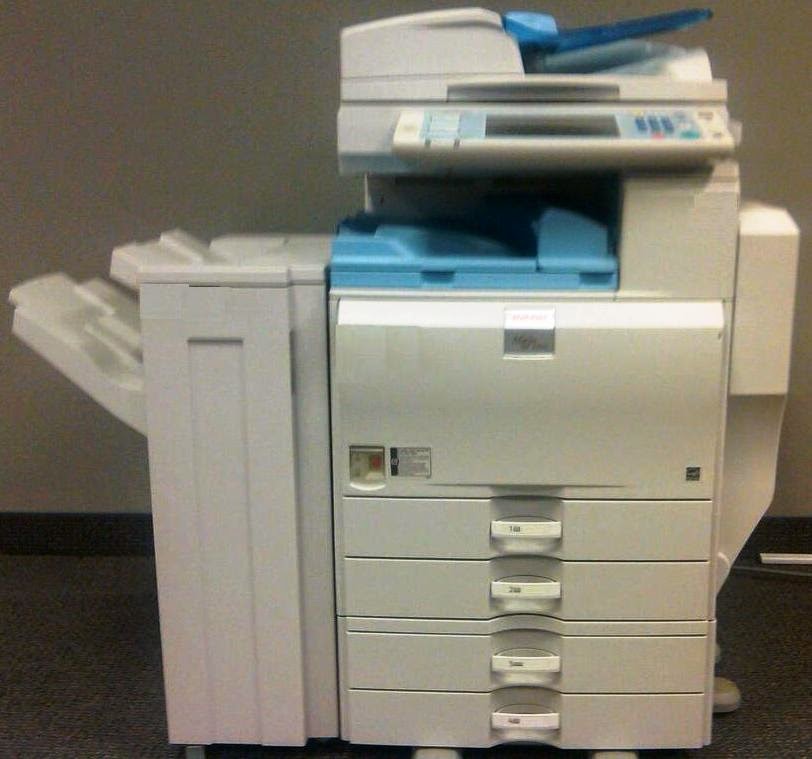
How to find the MAC address of a Ricoh MP series copier

If your Ricoh MP series copier has the capability to be used as a networked printer, then it has its own MAC address.  There are two styles of the MP series copiers: the ones that have touch screens (such as the MP2550 or the MP6000) and the smaller desktop models that don't have touch screens (like the MP2000).  The copiers with the touch screens are easy to recognize because the display screen is large and graphical, whereas on the other models the screen is tiny and displays mainly text.

The steps to find your copier's MAC address depends on which style of MP copier you have.  (The steps may vary for some individual models, but they should generally be the same across the board.)


For the touch screen models:

A.  Press the User Tools/Counter key (typically found to the left of the display screen).

B.  On the touch screen, select System Settings.

C.  Select the Interface Settings tab.

D.  Select Machine IPv4 Address on the touch screen.

The MAC address will be displayed on the screen, next to the IP address.


For the non-touch screen models:

A.  Press the User Tools/Counter key (probably in the upper right corner of the operational panel).

B.  Using the arrow keys, scroll down until you see System Settings, then press the OK key.

C.  Scroll to Interface Settings (or IF Settings) and press the OK key.

D.  Select Network.

E.  Select Machine IPv4 Address.

F.  There will be three choices along the bottom of the screen; press the corresponding key for MAC Address (probably the far right one).

The MAC address will be displayed on the screen.


If you would rather have a printout with the MAC address on it, you can print a configuration page on either style of machine.  For the touch screen models, press User Tools/Counter, then go into Printer Features and on the List/Test Print tab (the one that should be active by default) choose Configuration Page.  On the page that prints out, the MAC address will be located toward the bottom, in the "Interface Information" section.

For the non-touch screen models, follow steps A, B, and C above, and then instead of choosing Network, go to Print IF Settings List, and then press the Start key.  Two or three pages may print out, depending on the specific machine, but the MAC address will be located toward the top of the first page.

(Originally published on Helium.com, August 2010)

Tuesday, June 24, 2014

How to find the MAC address of a device

A MAC address is a permanent identifier that is burned into network interface cards (NICs) used in computers as well as other network-connectable devices such as printers, routers, television set-top boxes, and video game systems. Unlike an IP address, a MAC address does not change, and it's a way for devices to identify each other on a network.

MAC address filtering is a relatively strong security measure you can take for your home or office network. By enabling MAC address filtering, any device whose MAC address does not match a MAC address on the list that you specify won't be able to access your network. MAC address filtering is especially useful for wireless networks.

In order to use MAC address filtering, you'll need to know the MAC addresses of all the devices that you want to be able to connect to your network. A MAC address consists of six groups of two characters, and each group is separated by either a colon (:) or a hyphen (-).  The characters can be numerals (from 0 to 9) or letters (from A to F).

For a networked printer or copier, you can typically find the MAC address by printing out a configuration page. On some printers it may be called something different, like an information page or a network settings page.  This page should list all of the device's network configuration settings, including the MAC address. The MAC address may be called physical address, Ethernet address, hardware address, or something else, but you can recognize it by looking for the six two-character sets separated by a colon or hyphen.  (If you're not sure how to print a configuration page from your copier or printer, you can find instructions for many different brands and models here:  http://configpages.blogspot.com/)

Smart phones have MAC addresses as well, but they can be trickier to find.  On an iPhone, the MAC address is labeled as the WiFi Address, and on other smart phones it may be called something similar. Just like with printers, you can recognize the MAC address by its unique format. Some BlackBerries will display the MAC address on the phone's Status screen (under Options); on others it can be found under Manage Connections.

If a device is already connected to your local network, you may be able to find its MAC address by using your router's web interface. Most routers allow you to access their settings by typing the router's IP address (often 192.168.1.1 for a home network) into your web browser and logging in with your username and password. Depending on your router's software, you might be able to view a list of all devices connected to your network, along with each device's MAC address.

If you're running Windows Vista or Windows 7, you can find the MAC address of any device on your network by using the Network Map. In the Network and Sharing Center, click Network Map or View Full Map in the upper right corner, and a visual representation of your network will be shown.  Just hover over any device listed, and you should see it's MAC address.

(Originally published on Helium.com, August 2010)